
The Enjovia system offers a range of powerful promotional tools designed to help you boost your sales revenue.
These can be found in the discounts tab on the side bar of your homepage.
When you first create a discount you will see our welcome page

After you have made a discount, the page will display a list of your active and draft discounts.

When you click create discount a pop up will appear giving you two discount options.
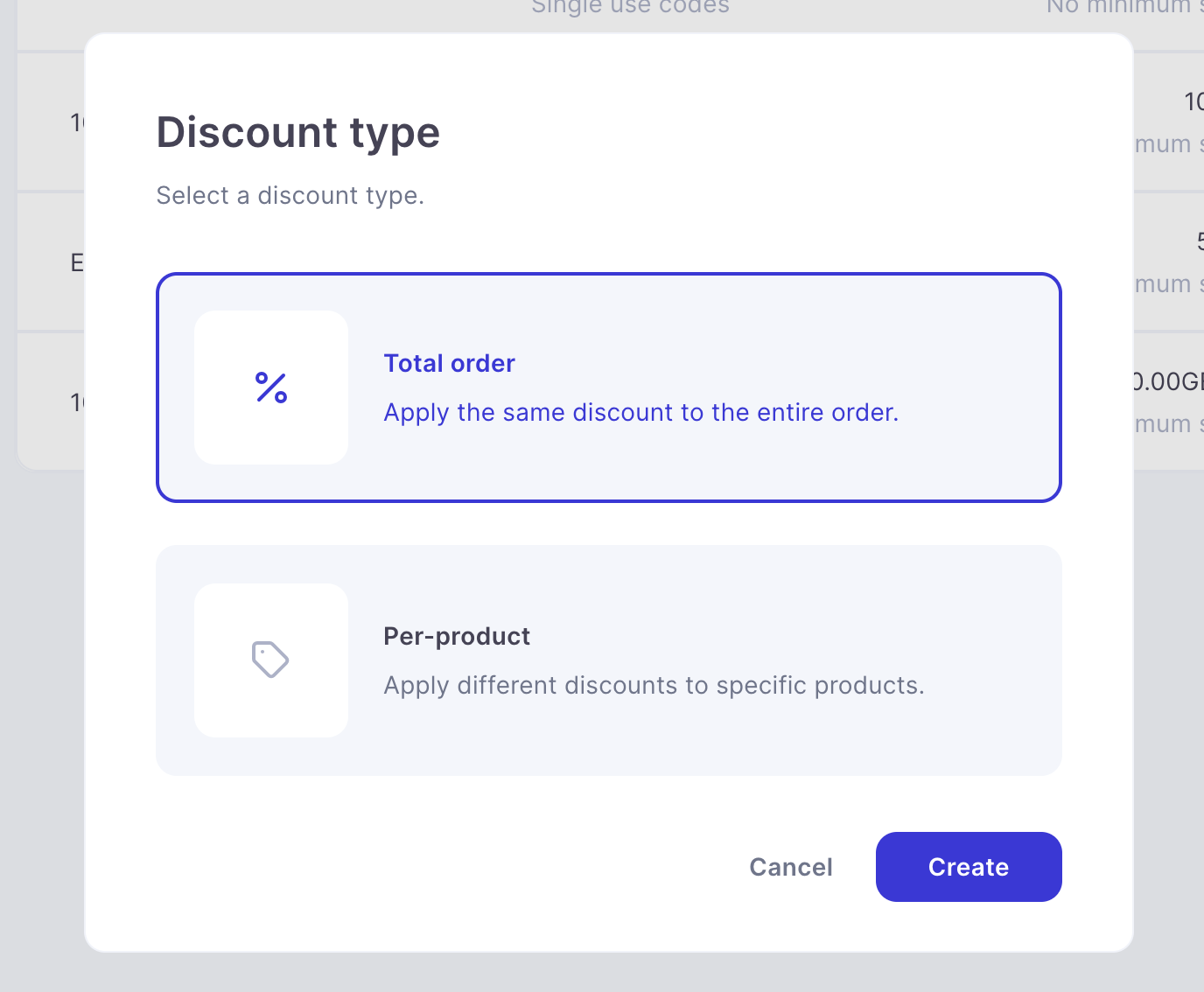
This article will cover per-product, this discount, will allow you to assign different discounts to specific products, including multiple discount types under a single promocode.
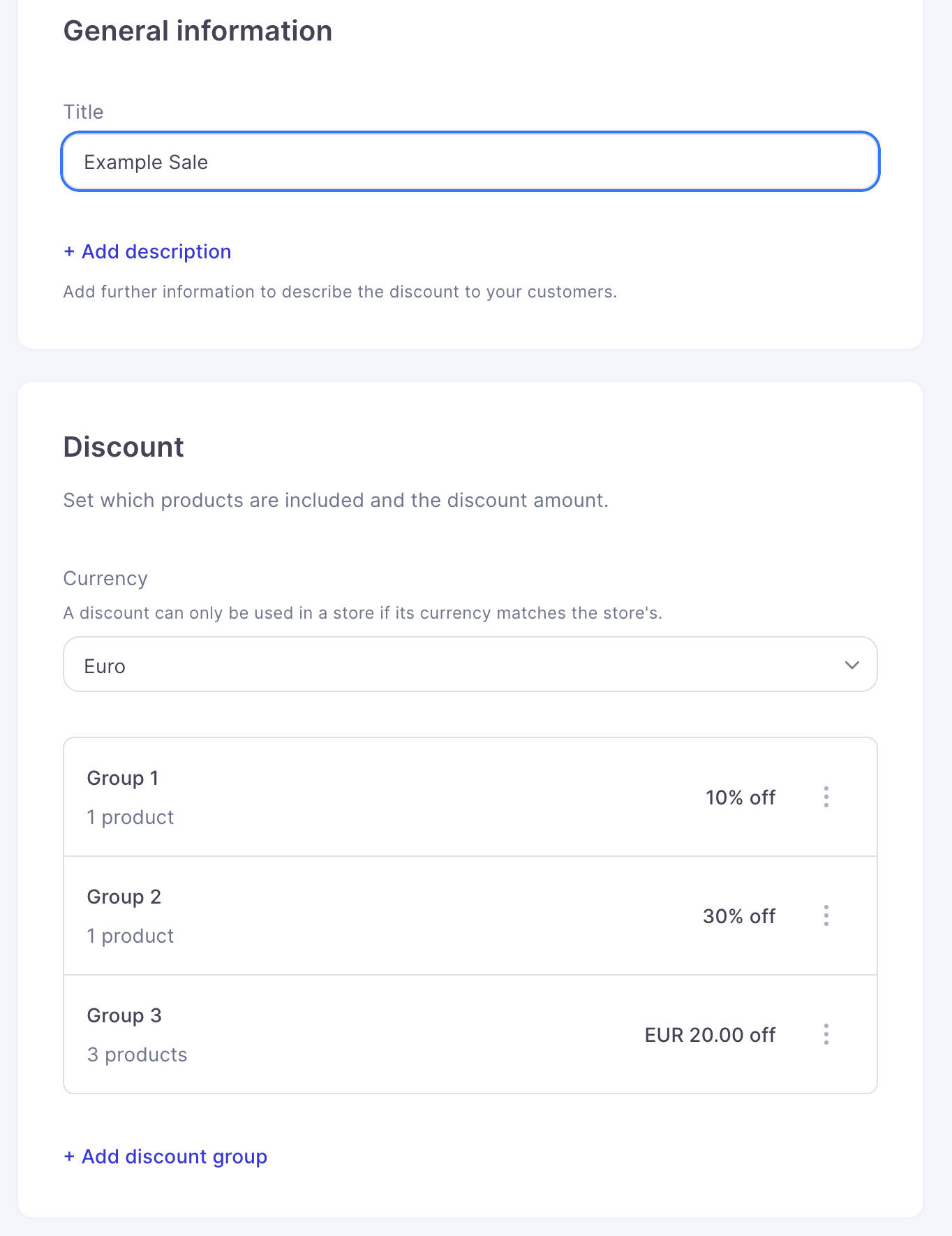
As always theres some basic things we are going to need you to fill in:
Title - This is the name of the discount
Add description - This is optional but allows you to add further informationt to describe the discount to your customers.
Discount - This is the discount that willl apply to the products you have selected.
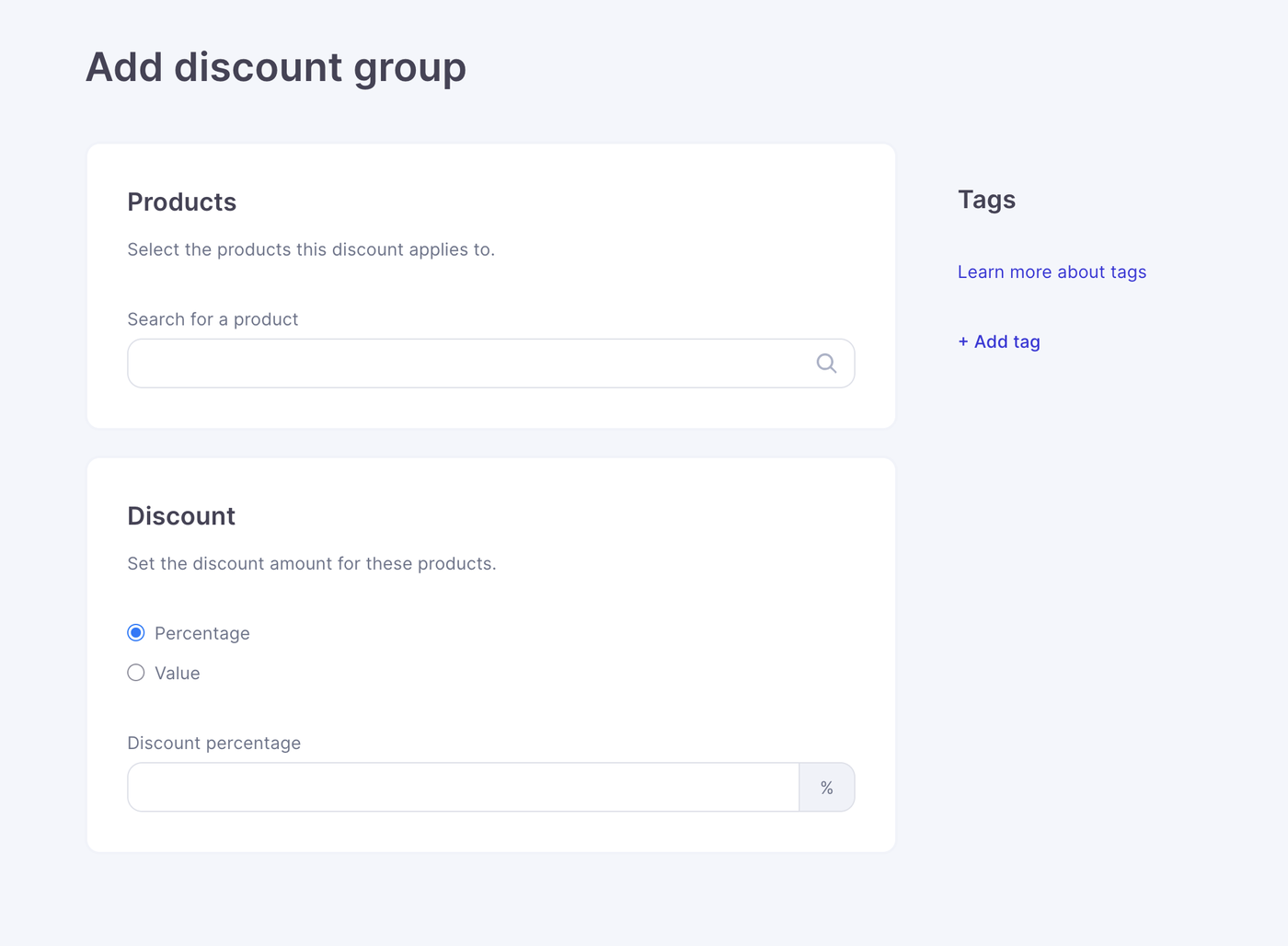
Add Discount Group - to add further discounts , either amounts or value off to other products under the same promocode, press add a discount group.
Search for the product you need from the drop down or use it as a search bar. You can also use tags to add further bits of data to individual discounts.
The optional fields:
Scheduled activation - You can set dates and times you wish your discount offer to activate and deactive.
Eligibility - Set requirements that must be met for the discount to be applied, right now that is a minimum purchase amount, for instance you can state you will need to spend over $100 in the basket for the discount to activate.
Tags - Are a way to create additional data points for external systems through Enjovia's API.
Next we have a number of promocode options.

There are 3 current promocode options:
No code required - The discount can be applied from the checkout without entering a code.
Create codes manually - Add one or more codes and define the number of times each code may be used. Note: Restricting the number of codes is optional.
Autogenerate codes - Ask the system to create a set number of random single use codes, these can be used for personalised email campaigns where marketing email providers will be able to track which users used which codes.
As always remember to save at the bottom, save as draft to save it for later or save and activate to set the promotion live immediately.
Important note on automatically applying promocodes
If there is a single promotion which is applying automatically this will be added to any qualifying basket automatically.

If there are more then one promotion running on the same store, neither will automatically apply, it will be up to the customer to select the promotion they feel gives them the best value. These will show in a clear listed way in the checkout.
