Stock limits allow you to control the number of vouchers available for an individual product.
This is particularly useful for:
Ticketed events with limited capacity
Seasonal or exclusive products
Limited-time promotions
Campaigns designed to create urgency
Stock limits are managed separately for each product.
Finding the stock settings
Open the product you would like to manage.
The Stock section can be found in the product sidebar, between Stores and Categories.
You can set a stock limit when creating a new product or add one to an existing product at any time.
Managing available stock
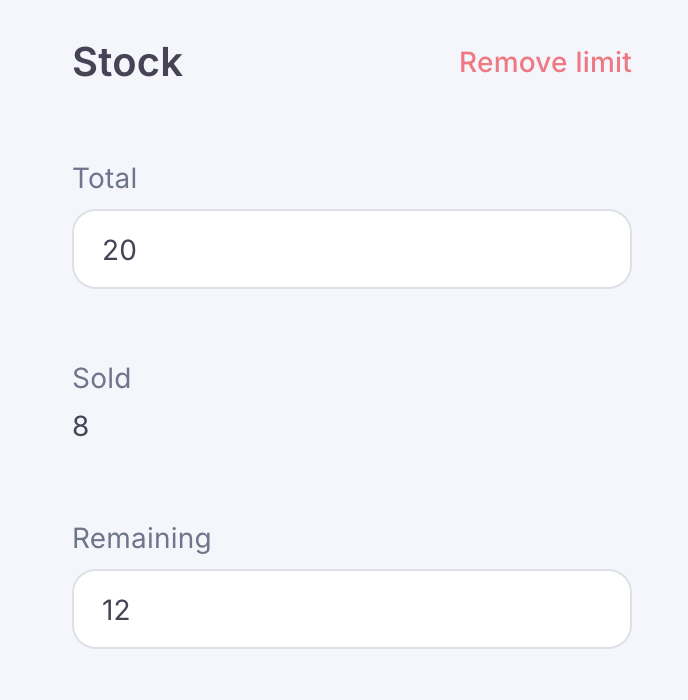
The stock page displays:
Total available: The total number of vouchers available to sell
Sold: The number of vouchers already sold
Remaining: The number of vouchers still available
You can return to the product and increase the total stock whenever required. This allows you to release additional stock if availability is running low or the product has sold out.
What customers will see
The remaining quantity is displayed to customers on the storefront.
When no stock remains:
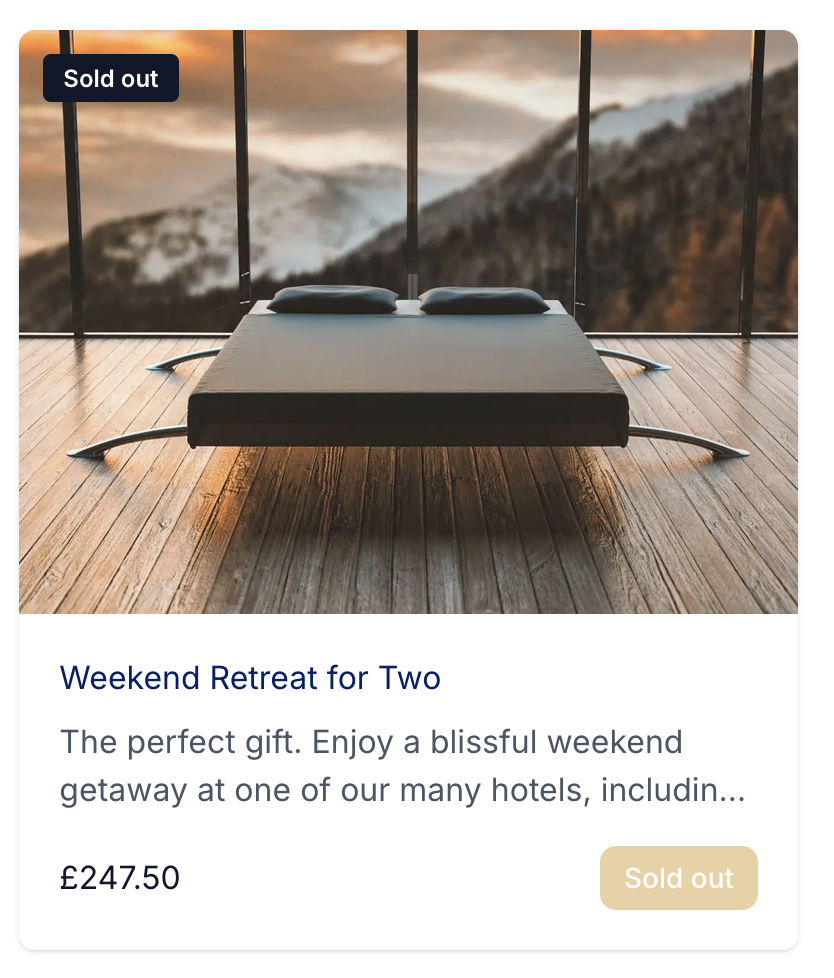
The product is marked as Sold out
The purchase button is greyed out
Customers cannot add the product to their basket
If you add more stock, the product will become available to purchase again.
Selling sold-out products through the terminal
When a product has sold out, it will appear as unavailable in the terminal.
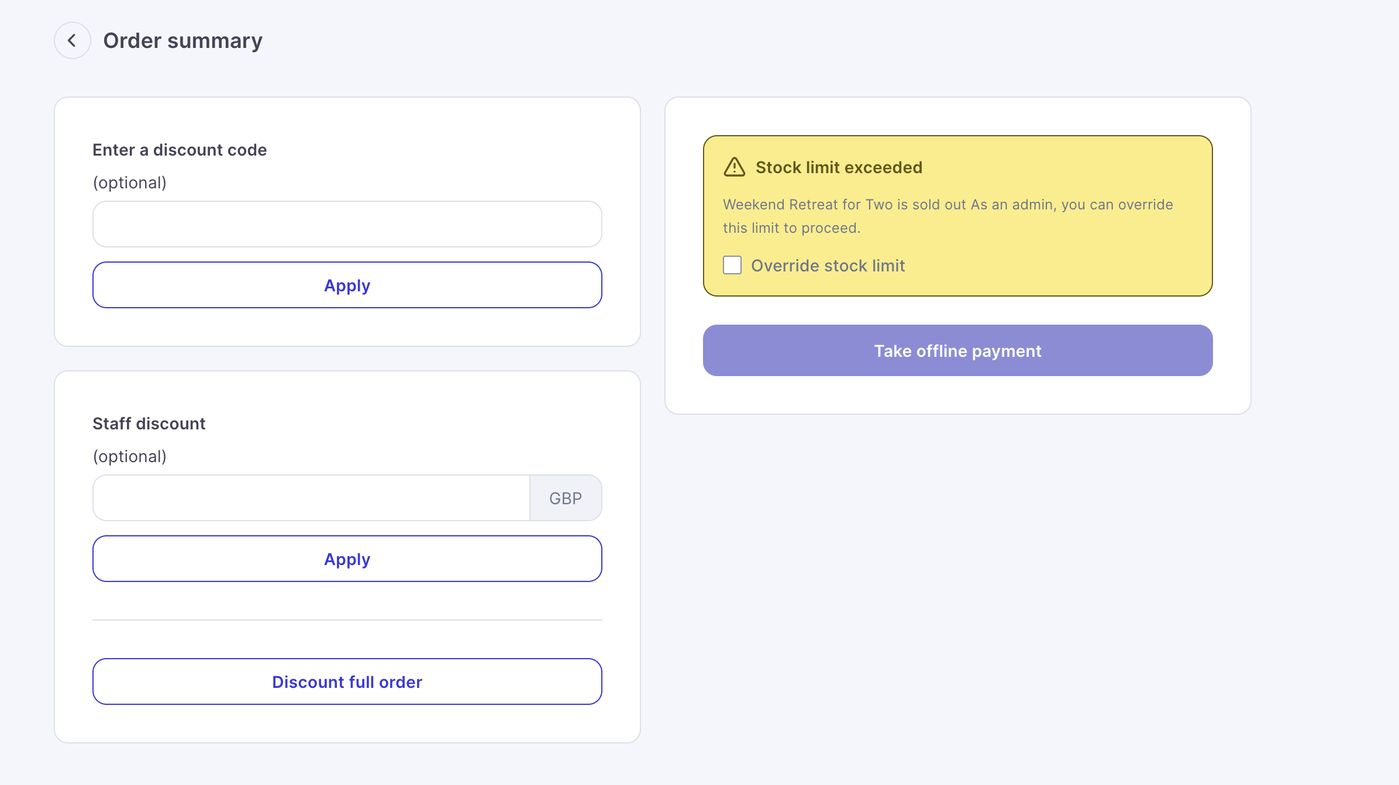
Users with Admin or Super Admin permissions can override the stock limit and complete the sale.
This allows authorised team members to process an additional sale when appropriate without increasing the product’s published stock level.