
The bulk voucher creator allows you to send individual vouchers to multiple recipients at once using a CSV upload.
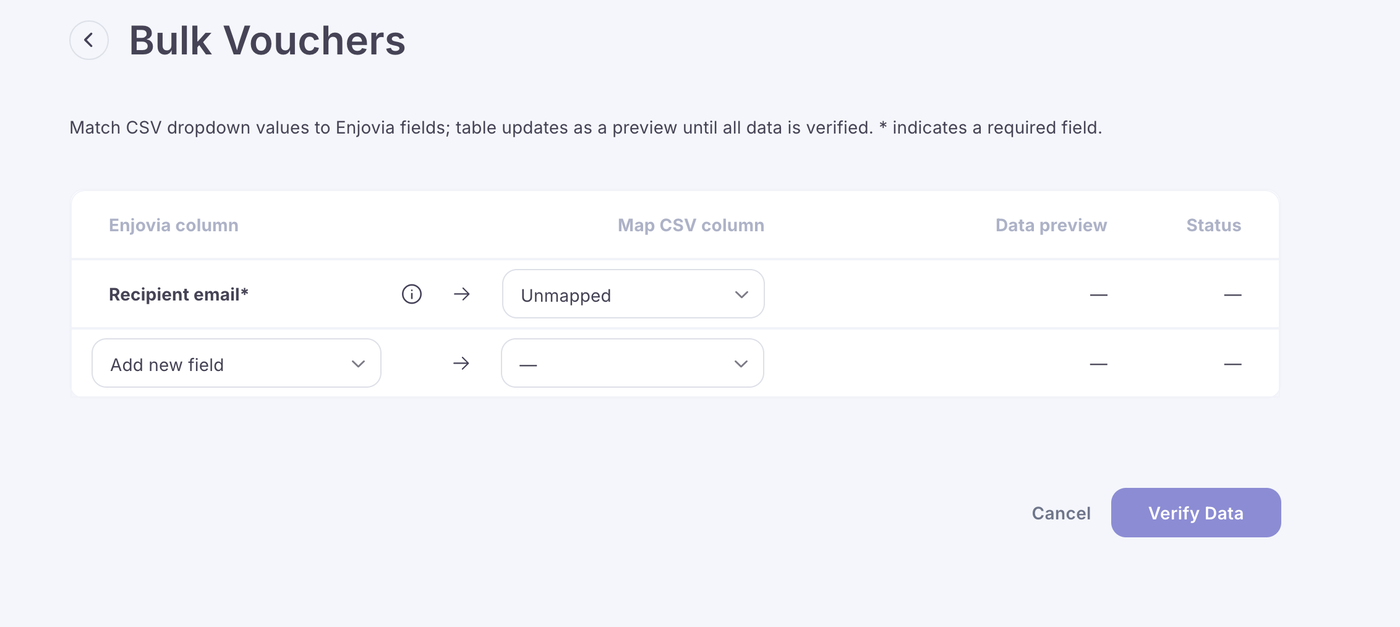
This is useful for corporate gifting, customer campaigns, staff rewards, or any situation where you need to generate and email multiple vouchers in one go.
To get started, go to the bulk voucher creator in your Enjovia admin.
The first thing you will need to do is upload a CSV file containing your recipient data.
Your CSV must include:
An email address column, required
A customer name column, optional
The email address is used to send the voucher, and the customer name can be used where personalisation is required.
Once your CSV has been uploaded, the system will verify the data.
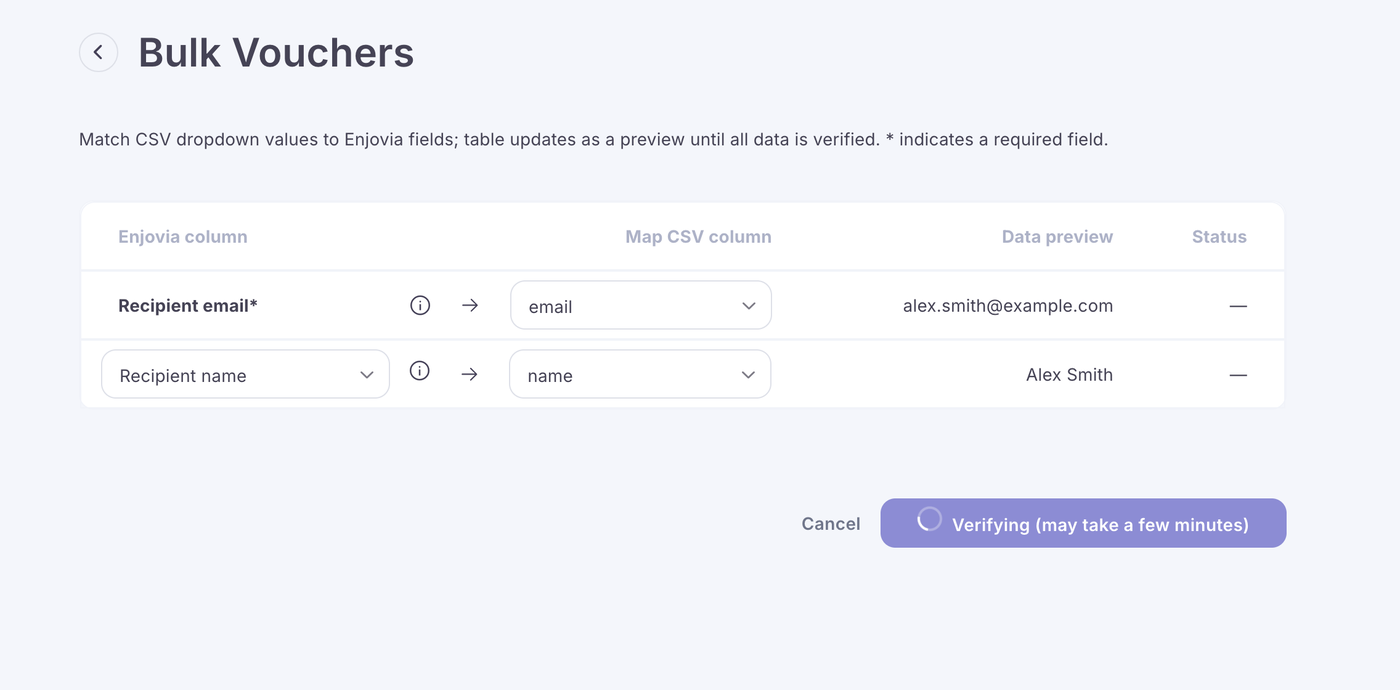
This check helps identify any missing values or invalid email addresses before the vouchers are created.
If there are any issues with the file, you will be asked to correct them before continuing.
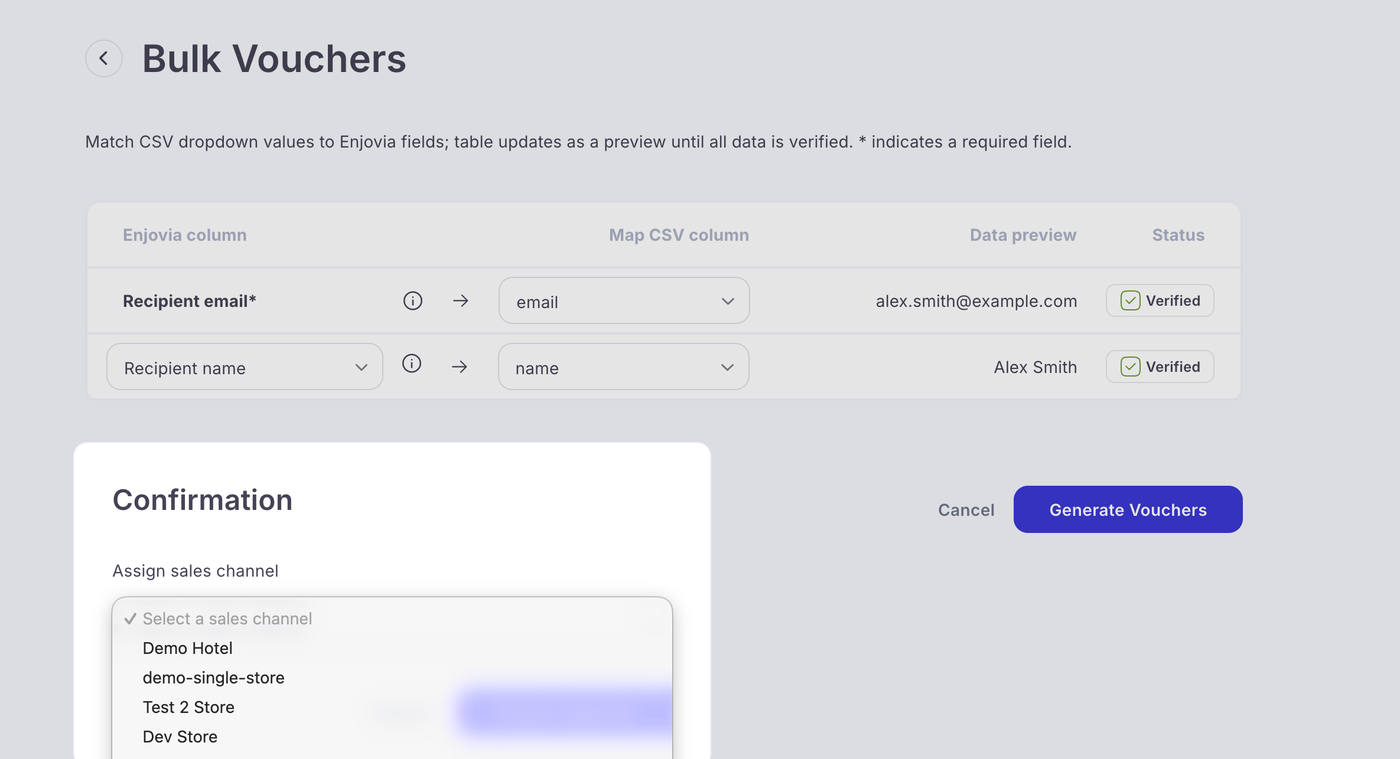
For multi store accounts, the next step is to select a store.
If your account has access to multiple stores, the system will ask you to choose which store the vouchers should be selected from. If you only have one store, this step may be skipped.
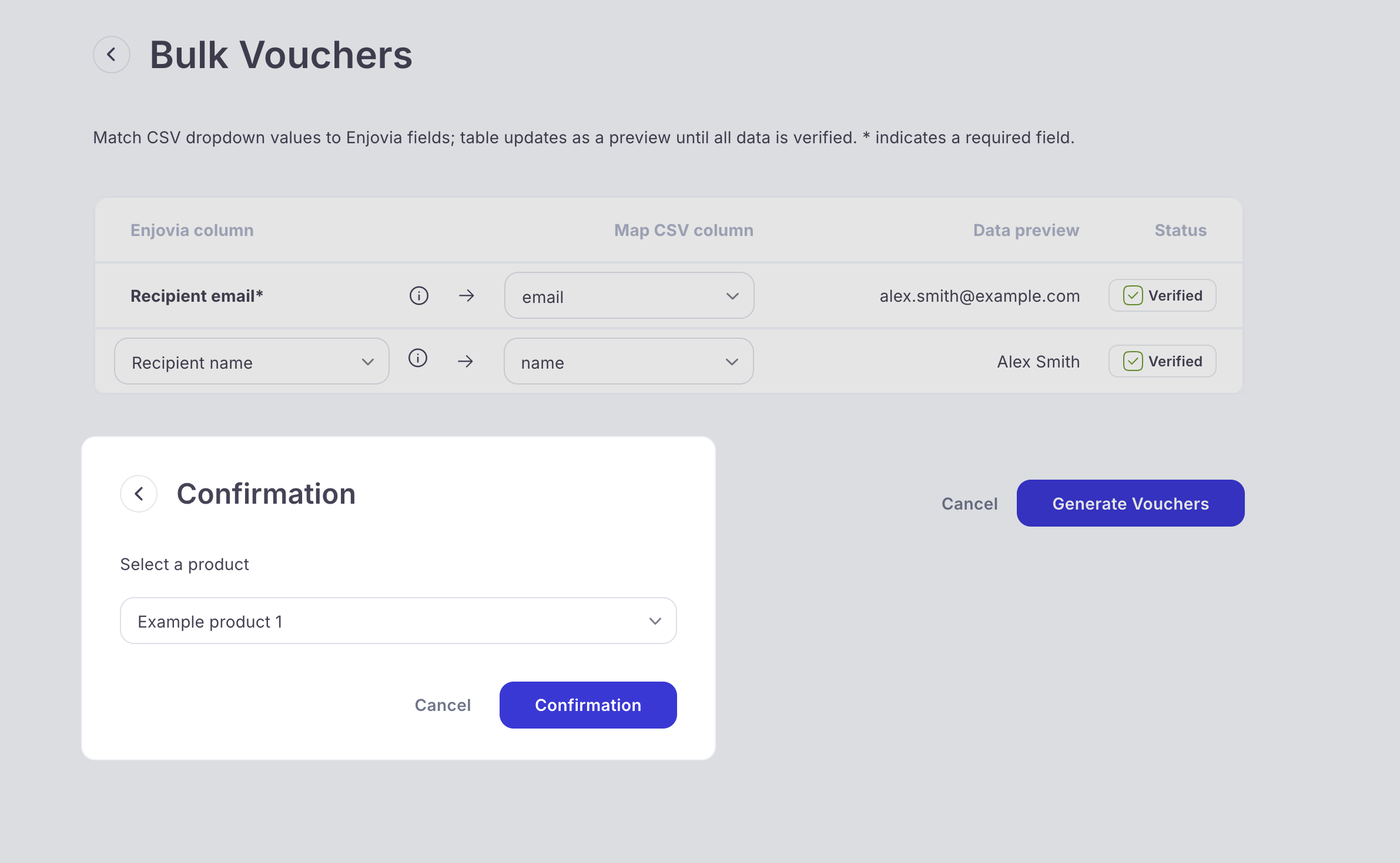
The next step is to choose the product.
Once the store has been selected, choose the product you want to send to the recipients in your CSV file.
The system will then create an individual voucher for each row in the upload.
Each voucher is sent separately by email to the address listed on that row.
Sending multiple vouchers to the same email address
If you want to send more than one voucher to the same recipient, simply include the same email address on multiple rows in the CSV.
Each row is treated as a separate voucher.
For example, if the same email address appears 3 times, the system will create and send 3 separate vouchers to that recipient.
Example CSV format
Email address
Customer name
name@example.com
John Smith
name@example.com
John Smith
another@example.com
Sarah Jones
In the example above, John Smith would receive 2 separate vouchers and Sarah Jones would receive 1.
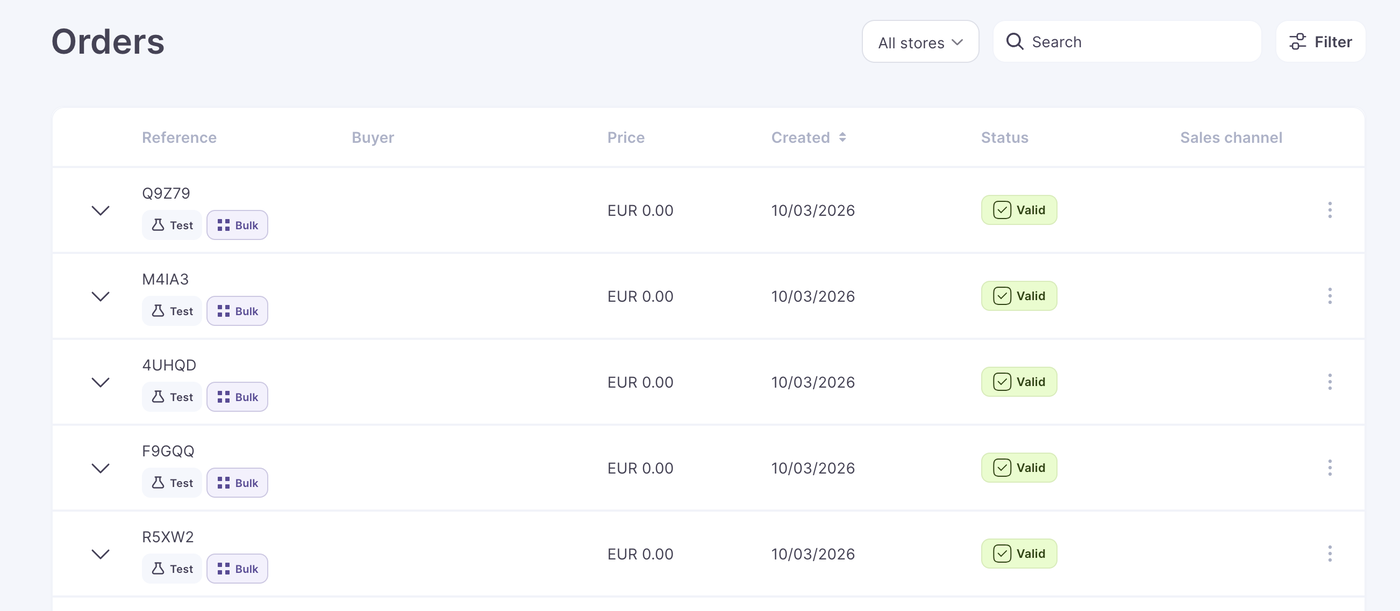
Vouchers will appear in orders and be marked as bulked vouchers.
Important notes
Make sure each recipient appears on their own row.
If you are including customer names, they should be added in a separate column.
If the same email address appears more than once, a separate voucher will be created for each row.
For multi store setups, make sure you select the correct store before continuing.
Once the process is complete, each recipient will receive their own voucher by email.