
Using Cost Centres for Staff Discounts
Cost centres allow you to track and allocate staff discount usage more accurately. This feature is especially helpful for finance teams that need clearer reporting on internal revenue allocation.
You can find this feature in:
Settings: Cost Centres
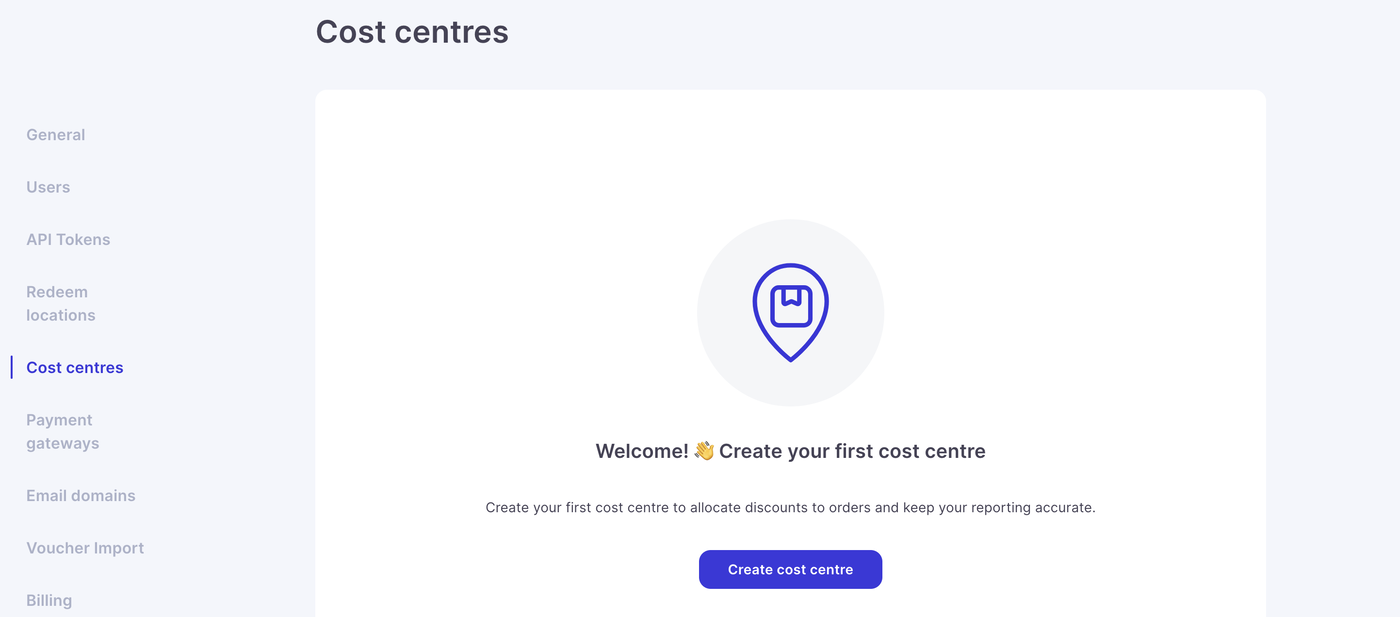
Creating Cost Centres
Go to Settings
Open the Cost Centres section
Create each cost centre you want to use
Save your changes
These cost centres can represent departments, teams or any internal grouping your organisation uses for financial reporting and will appear in a list after you have created them.
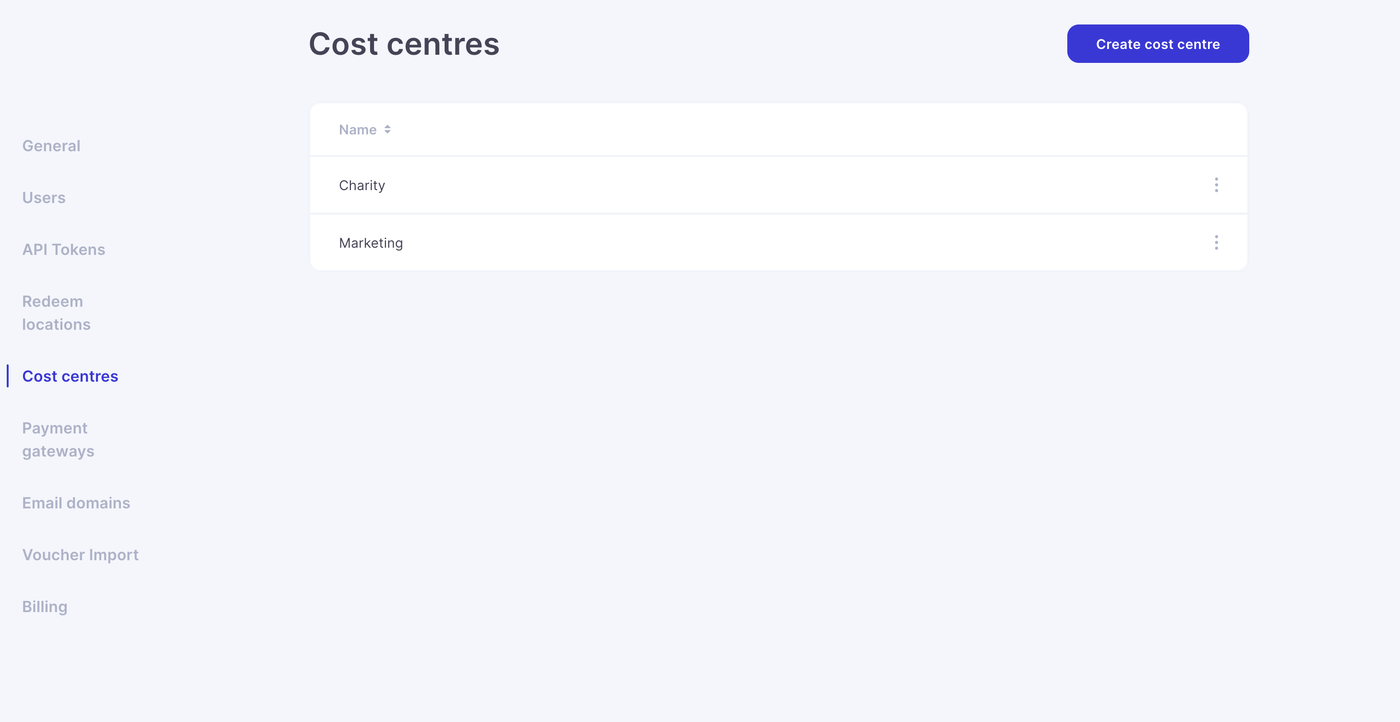
Assigning Cost Centres to Users
Once your cost centres are created, you can assign them to individual staff members.
Go to Settings: Users
Select a user
Choose the relevant cost centre, users will have access to all cost centres unless you restrict them.
There is also a role called sell and redeem with staff discounts, only these users will be able to discount and use cost centres.
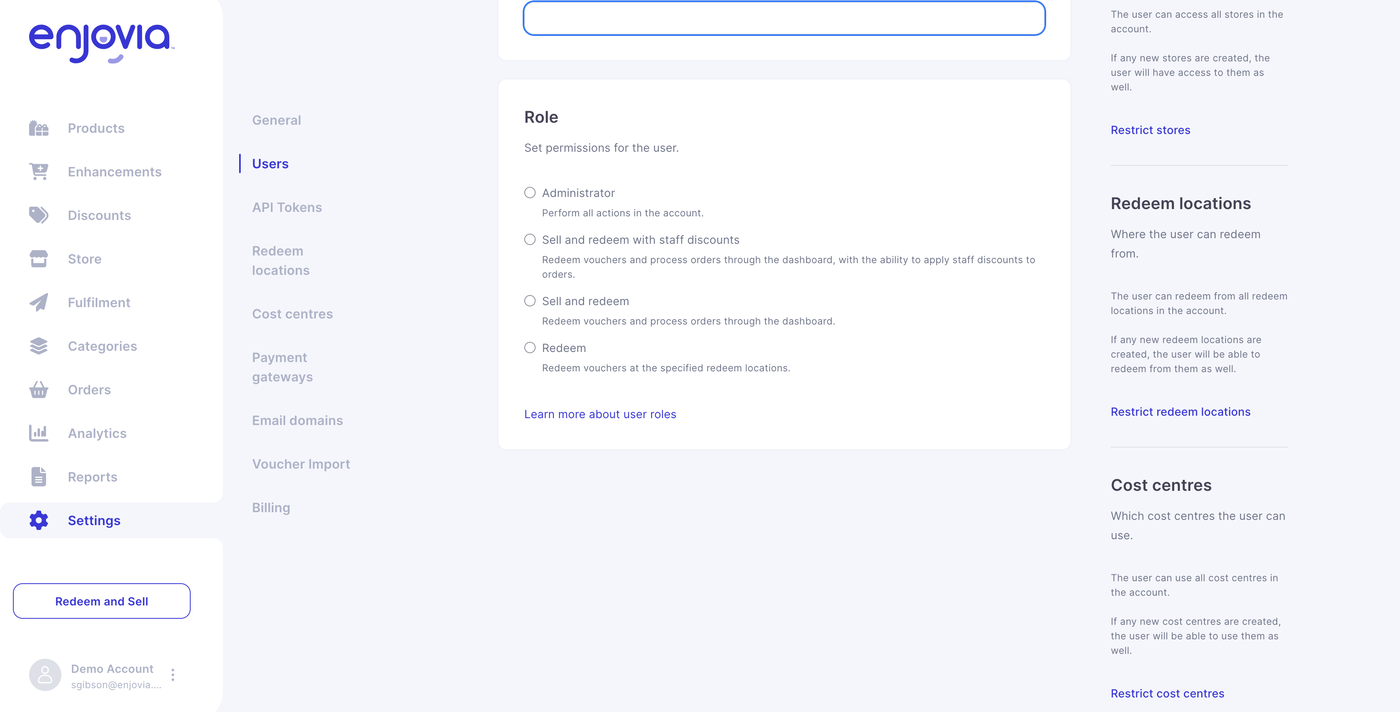
This ensures that any staff discount applied by that user through the terminal is correctly attributed.
Using Cost Centres in the Sales Terminal
When staff create discounted vouchers using the sales terminal, their assigned cost centre can be included as an option, unless you have required cost centres for discounts to put through in which case this window will be mandatory.
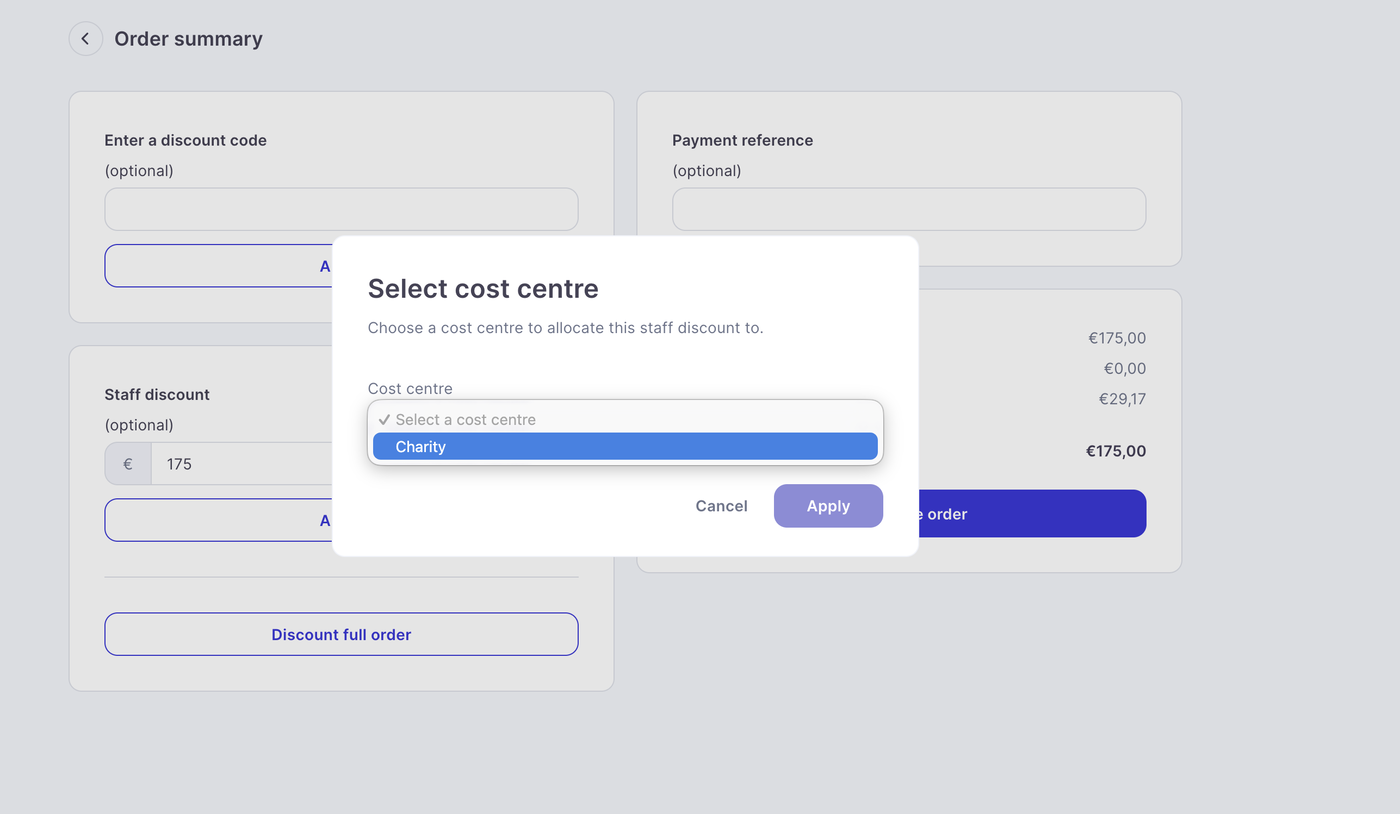
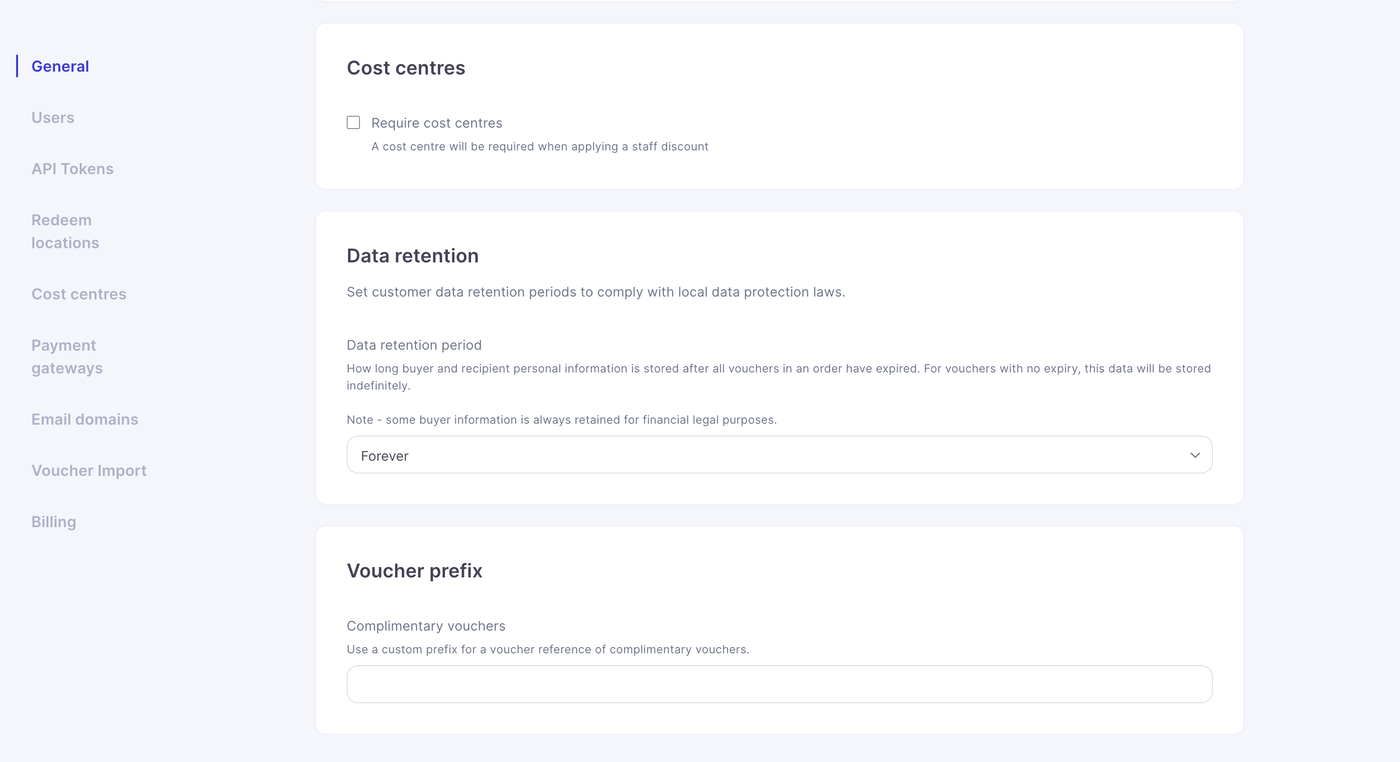
To enforce the use of cost centres, you can find this in general settings on the account settings page. Tick require cost centres.
Reporting
All internal voucher activity tied to cost centres will appear in your reporting tools. This gives finance teams clear visibility of which cost centres are using staff discounts, simplifying audits and internal reconciliation.