
The Email Copy feature allows your business to receive a copy of emails sent through the system. This can be used to notify employees of new sales or maintain an email record of every voucher issued.
Setting Up Email Copies
To enable this feature:
Go to Account Settings.
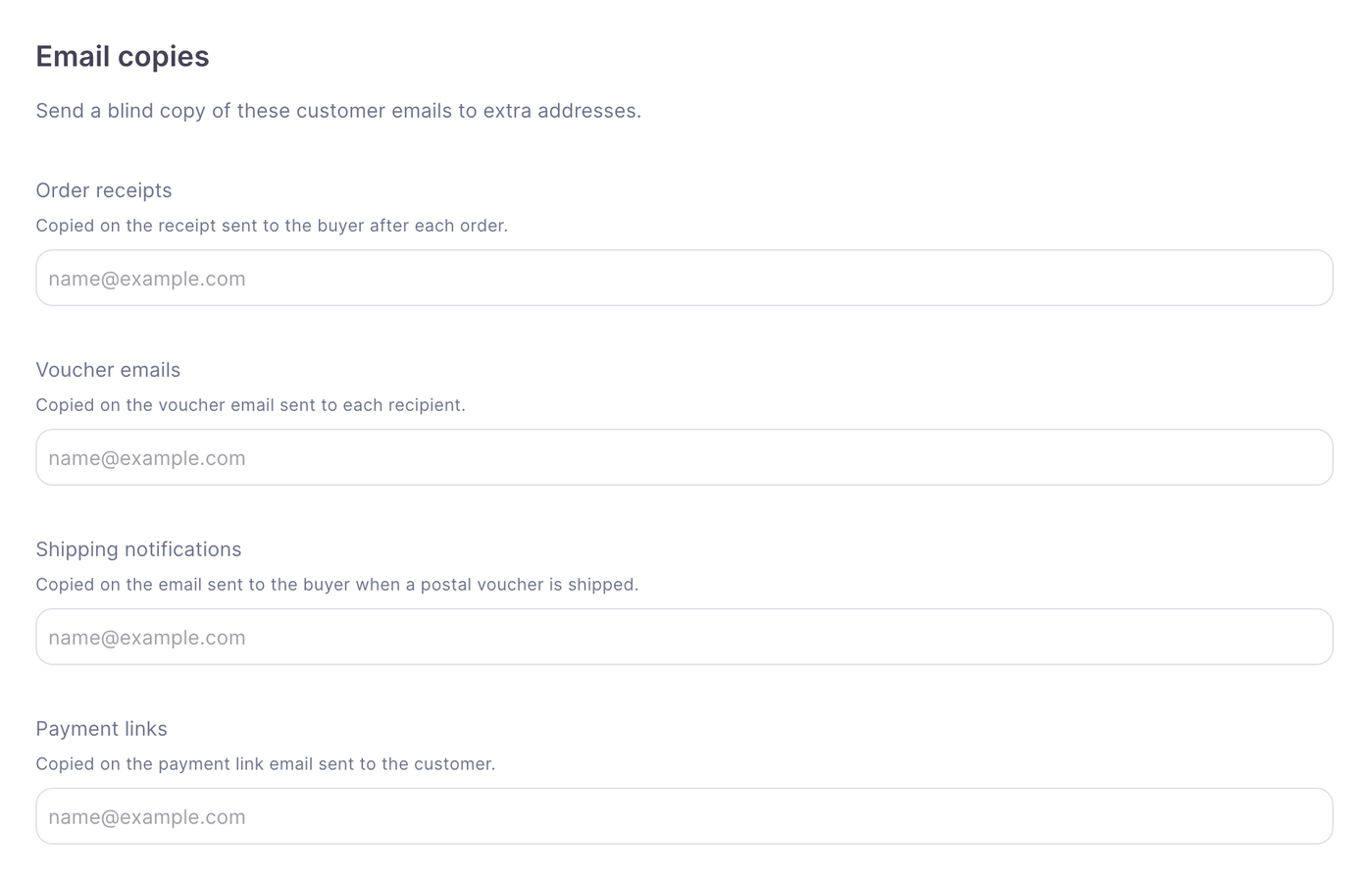
Find the Email Copy section.
Enter the email address that should receive the copies.
Save your changes.
The email address will be added as a BCC recipient, so customers will not see that a copy has been sent to your business.
Which Emails Are Copied?
The nominated email address will receive a copy of supported system emails, including:
Purchase receipts
Voucher emails
Shipping notifications
Payment links
Using a Dedicated Email Address
If your business needs a complete paper trail of vouchers and receipts, we recommend creating a dedicated email account for these copies.
This keeps system emails separate from your main inbox and makes it easier to find previous vouchers, receipts and customer communications.