Customising the Olympia storefront template
The Olympia Store Designer lets you customise your store’s colours, layout, banner and customer prompts. Open the store you want to edit, then go to its Store Designer.
Template
Storefront template
Select Olympia as your storefront template. Changing to another template may reset design fields that the new template does not support, so review your store design after switching.
Theme
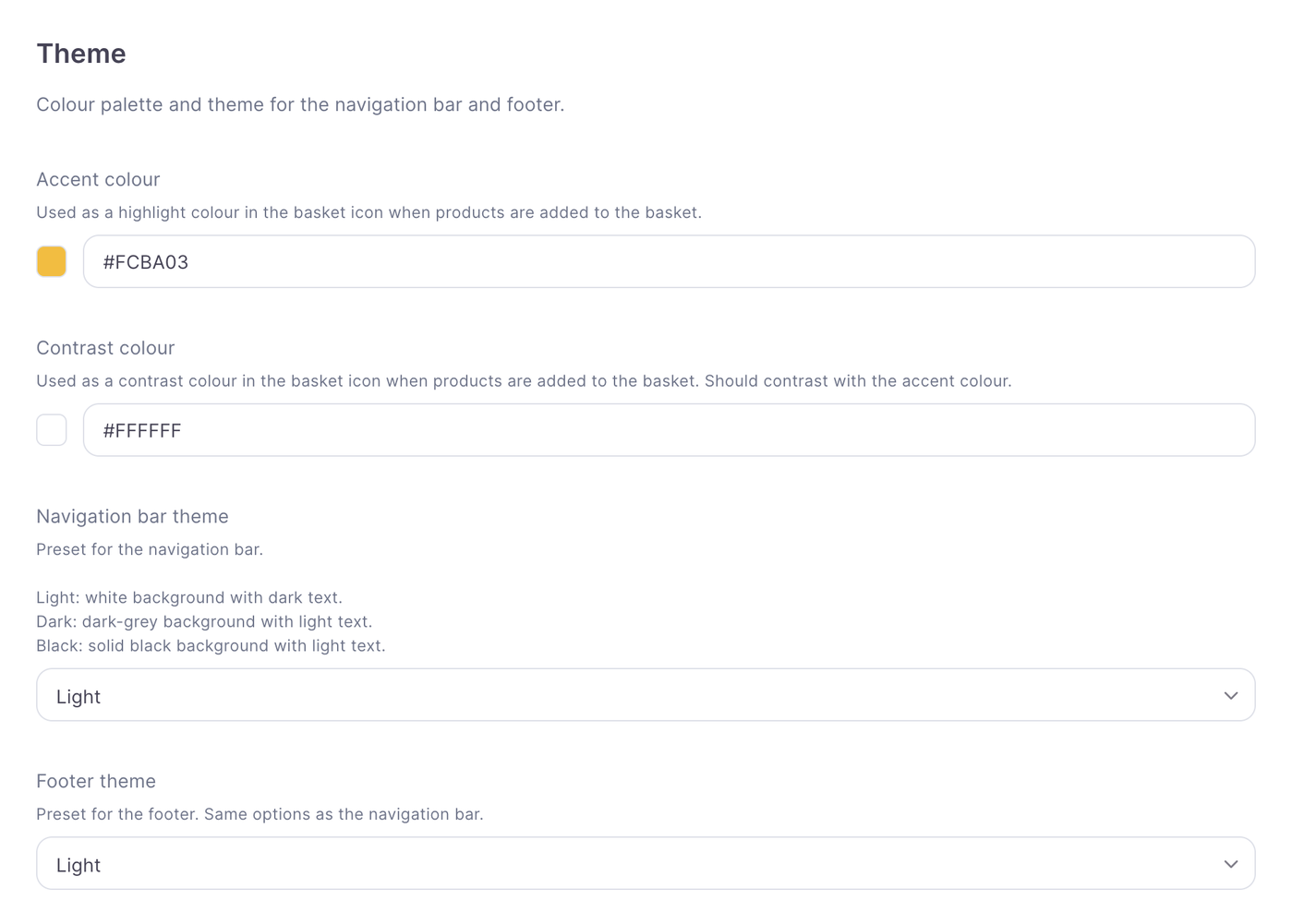
The theme settings control key colours and the appearance of the navigation bar and footer.
Accent and contrast colours
Accent colour: Used as a highlight in the basket icon when a customer adds a product.
Contrast colour: Also used in the basket icon when a product is added. Choose a colour that stands out against your accent colour.
Navigation bar and footer themes
Choose a preset for the navigation bar and footer independently:
Light: White background with dark text.
Dark: Dark-grey background with light text.
Black: Solid black background with light text.
Layout
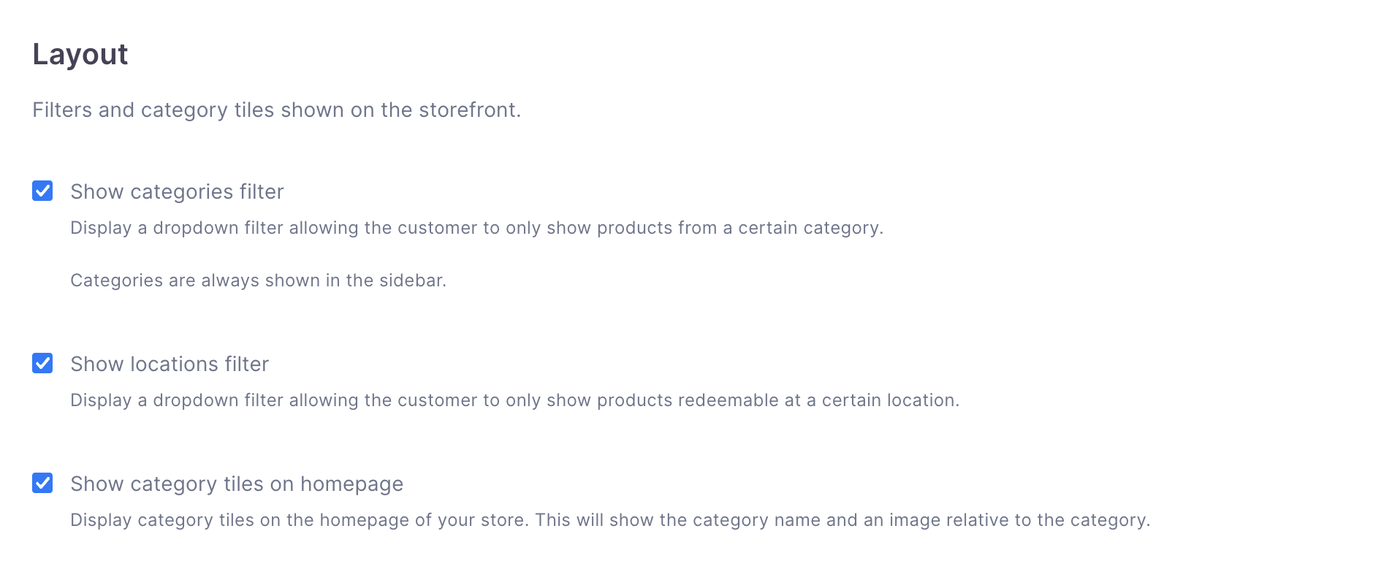
Layout settings control which filters and category tiles customers see.
Categories filter
Turn on Show categories filter to display a dropdown that lets customers show products from a selected category. Categories remain visible in the sidebar whether this filter is on or off.
Locations filter
Turn on Show locations filter to display a dropdown that lets customers show products redeemable at a selected location.
Category tiles
Turn on Show category tiles on homepage to display category cards with each category’s name and image.
Banner
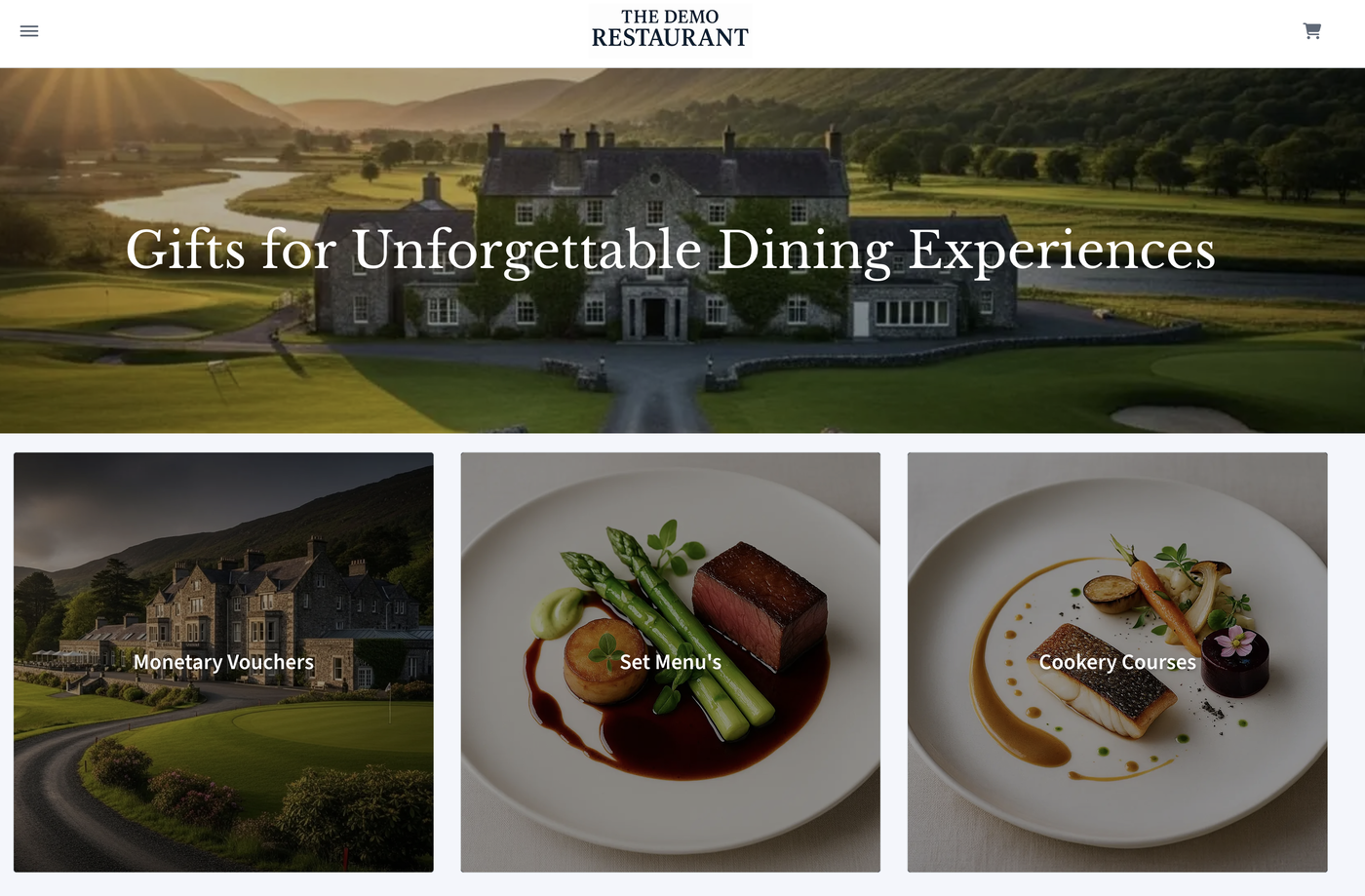
The optional banner appears directly below the navigation bar. Use it to highlight your store or promote a range of products.
Banner image
Upload an image using Banner image. A size of at least 1920 × 400 pixels is recommended. You can use Remove banner to clear the image.
Overlay text
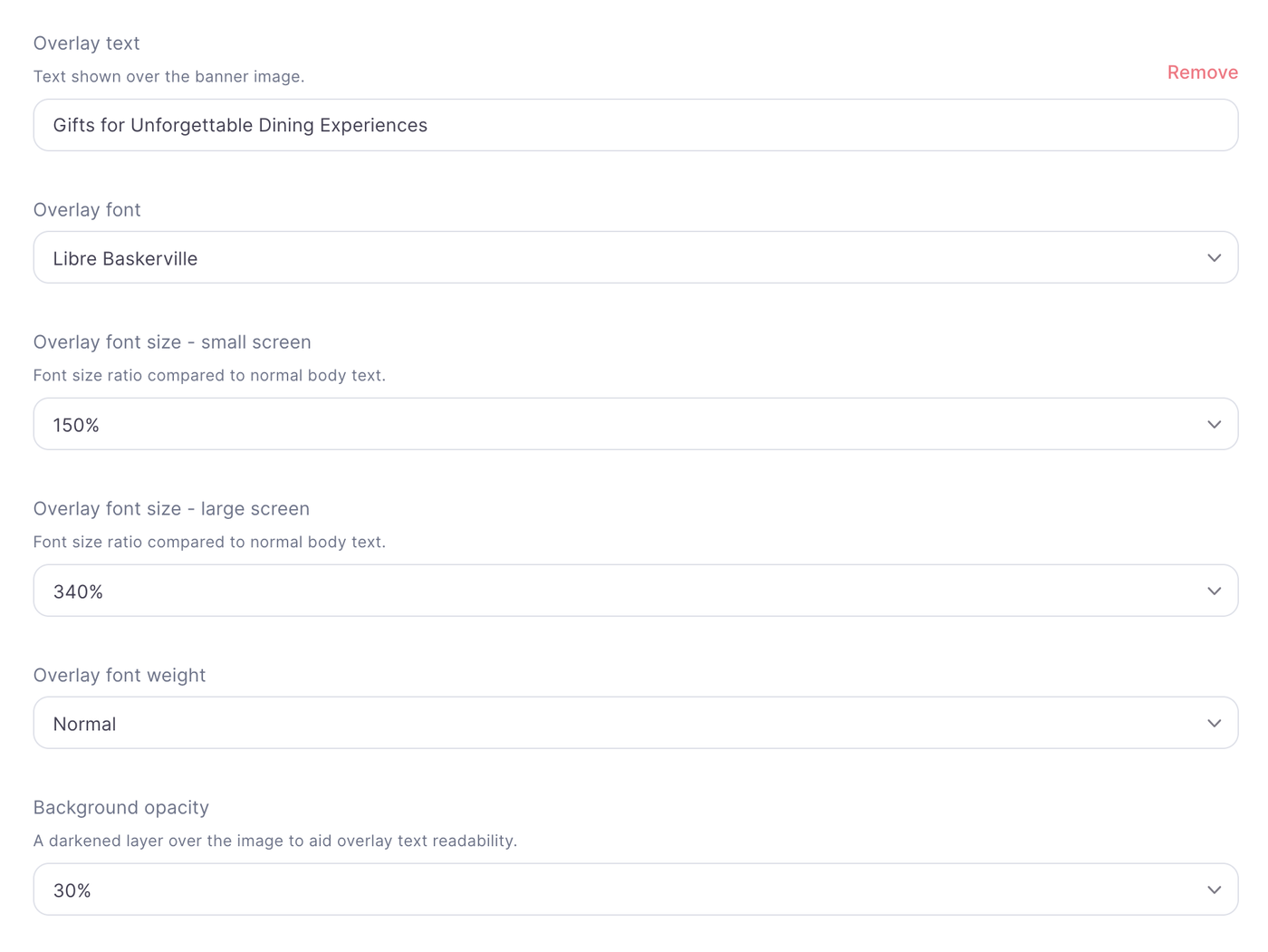
Add text to display over the banner image. You can remove this text independently of the image.
Overlay appearance
Customise the text using the overlay font, font weight and separate font sizes for small and large screens. The font size settings are ratios relative to normal body text.
Adjust background opacity to darken the image behind the text and make the wording easier to read.
Features
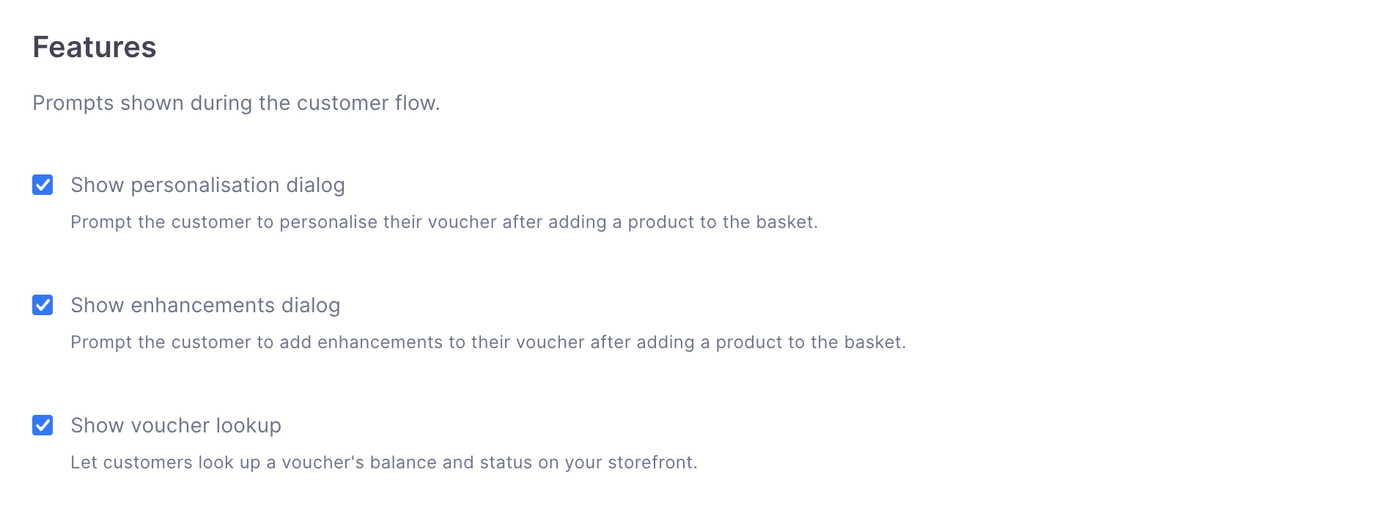
These settings control prompts and tools available during the customer journey.
Personalisation dialog
Turn on Show personalisation dialog to prompt customers to personalise their voucher after adding a product to the basket.
Enhancements dialog
Turn on Show enhancements dialog to prompt customers to add enhancements after adding a product to the basket.
Voucher lookup
Turn on Show voucher lookup to let customers check a voucher’s balance and status on the storefront.
When you are finished, press done but make sure you save on the store page as well or any changes you make wont save!
Here is are recommended settings to achieve a clean white background looking store.