
The Terminal has a sell a product feature which allows employees to sell or create vouchers directly from the admin dashboard.
The sales terminal is designed to facilitate 2 main use cases.
To facilitate the sale of vouchers face to face on property or over the phone, this terminal will allow you to generate vouchers while taking cash on property or using your own card machines / payment methods.
To facilitate the creation of complimentary or free vouchers. There are many situations where a complimentary voucher may be generated. These can be for complaints, to issue out instead of refunds for bad weather or unforeseen events, charity events, or membership / customer rewards.
To locate the sales terminal find Redeem and Sell on the admin dashboard.

This will take you to the terminal.
Note the terminal is the only part of the admin dashboard which has been designed for tablet and mobile.

There are two sales options here:
Sell a live voucher
Sell a test voucher
To sell a test voucher select this option, the process is exactly the same, but it will produce a test voucher, these vouchers will be flagged as test orders.
When you open the sales dashboard, you can change your sales location in the top right, but the main thing you will be doing here is selecting your product.

If you have a big catalogue of products, use the search bar to narrow it down, or use the filters to reduce the options.
You can filter by: Product type, status, categories and redeem locations.

When you've found the product you want, click on the product and you will land on the product detail page.
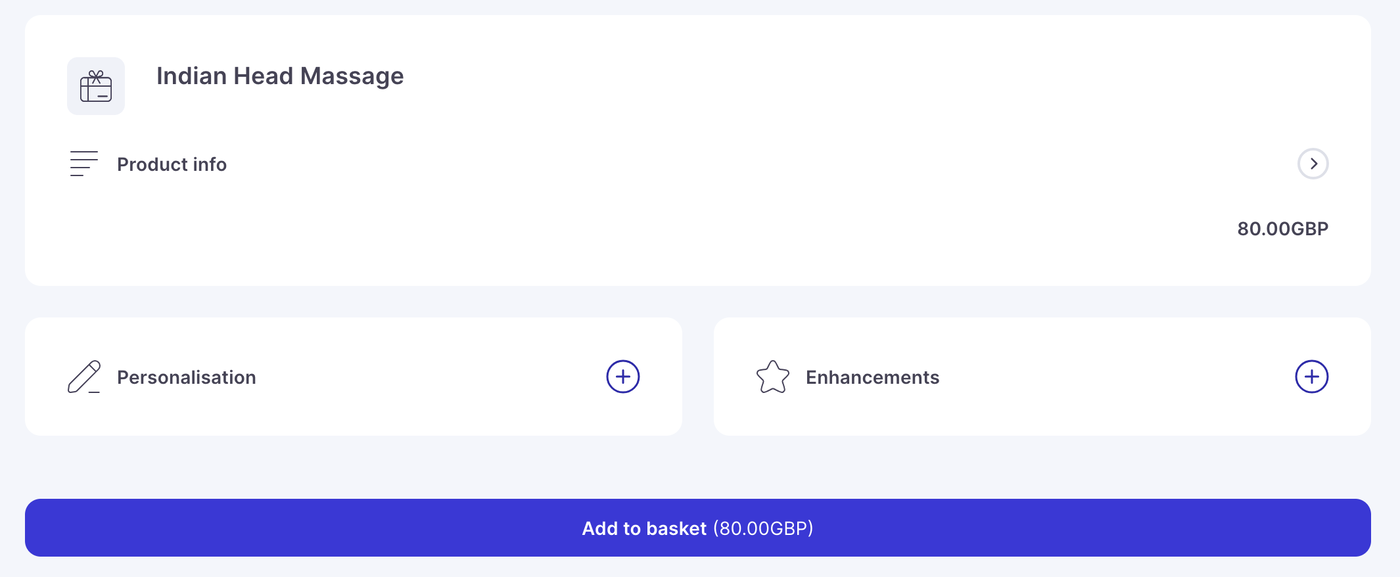
Similar to the normal customer checkout, there are a number of options you can do on this page
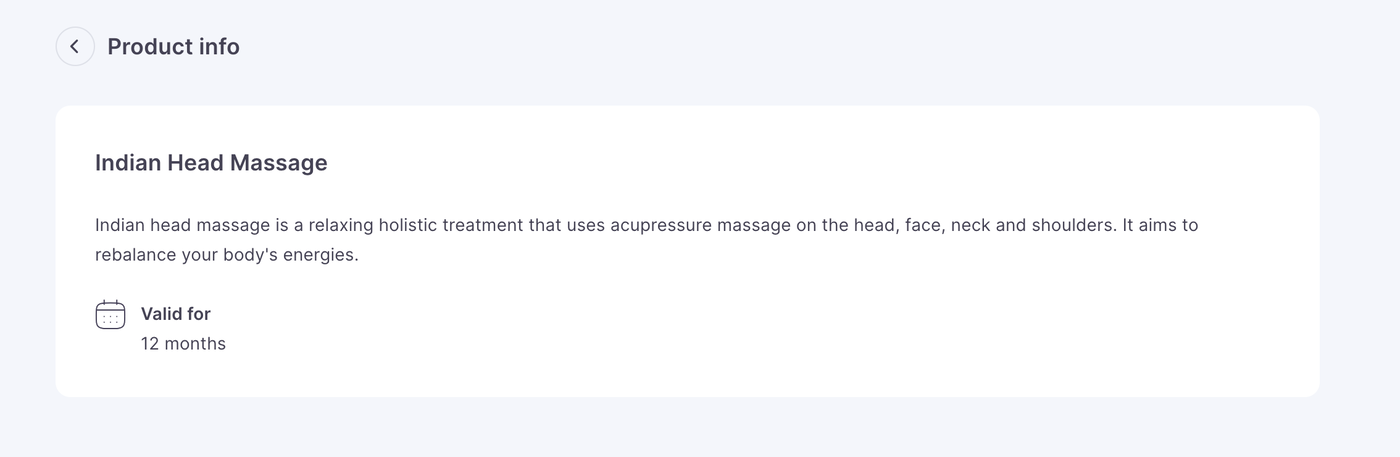
First you can check the voucher details, information on the voucher and the validity, by pressing the arrow on the product square, this will open up a details module.
Then you can add personalisation; You can add a to, from and add a personal message on behalf of the customer.

Secondly you can add enhancements or product upgrades to the order, giving your employees an opportunity to upsell at point of sale.

When you are ready add the product to basket , you can add as many products into the basket as you would like, but they will be sent to the same email or postal address and cannot be split up.

When you are ready proceed to checkout, the next screen you will be sent to is the delivery options, here you can:
Add a recipient email - this is the only mandatory field and is the email the voucher will be sent to.
Add a recipient name and a from name - adding some personalisation to the email
Add a payment receipt email - this will send a payment confirmation receipt to this email, this is optional and can be a different email to the voucher.

If you have fulfilment enabled on the store your delivery page will give you 3 options.
Email - Always enabled on every store.
Post - Enabled if postal options have been set up on the store.
Collection - Enabled if collection options have been set up on the store. (collection will also give you the opportunity to immediately print and fulfill the voucher at the end of the flow)

For collection:
Select packaging option
Add in email optional receipt email

For postal orders:
Input your customers name and address
Then select packaging and postage
Add in optional receipt email
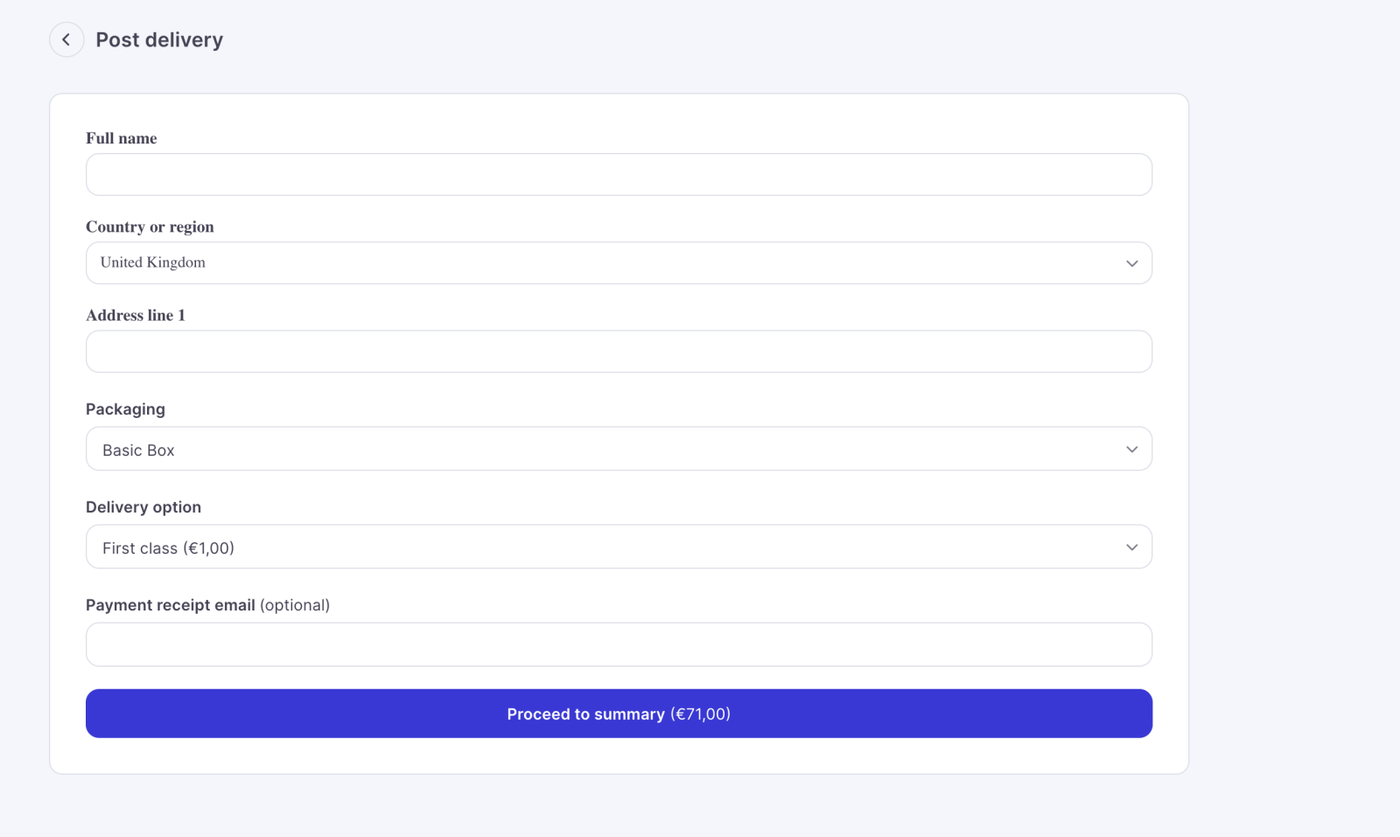
When you are ready proceed to summary. Again there are a few options on this page.
You can add a discount code , if there are any active promotions, they will show for your employee to optionally add to the sale.
Staff discounting - Employees can add a direct discount to an order of a fixed amount or by clicking discount full order, the value of the sale will reduce to 0. This is how you create complimentary or free vouchers.
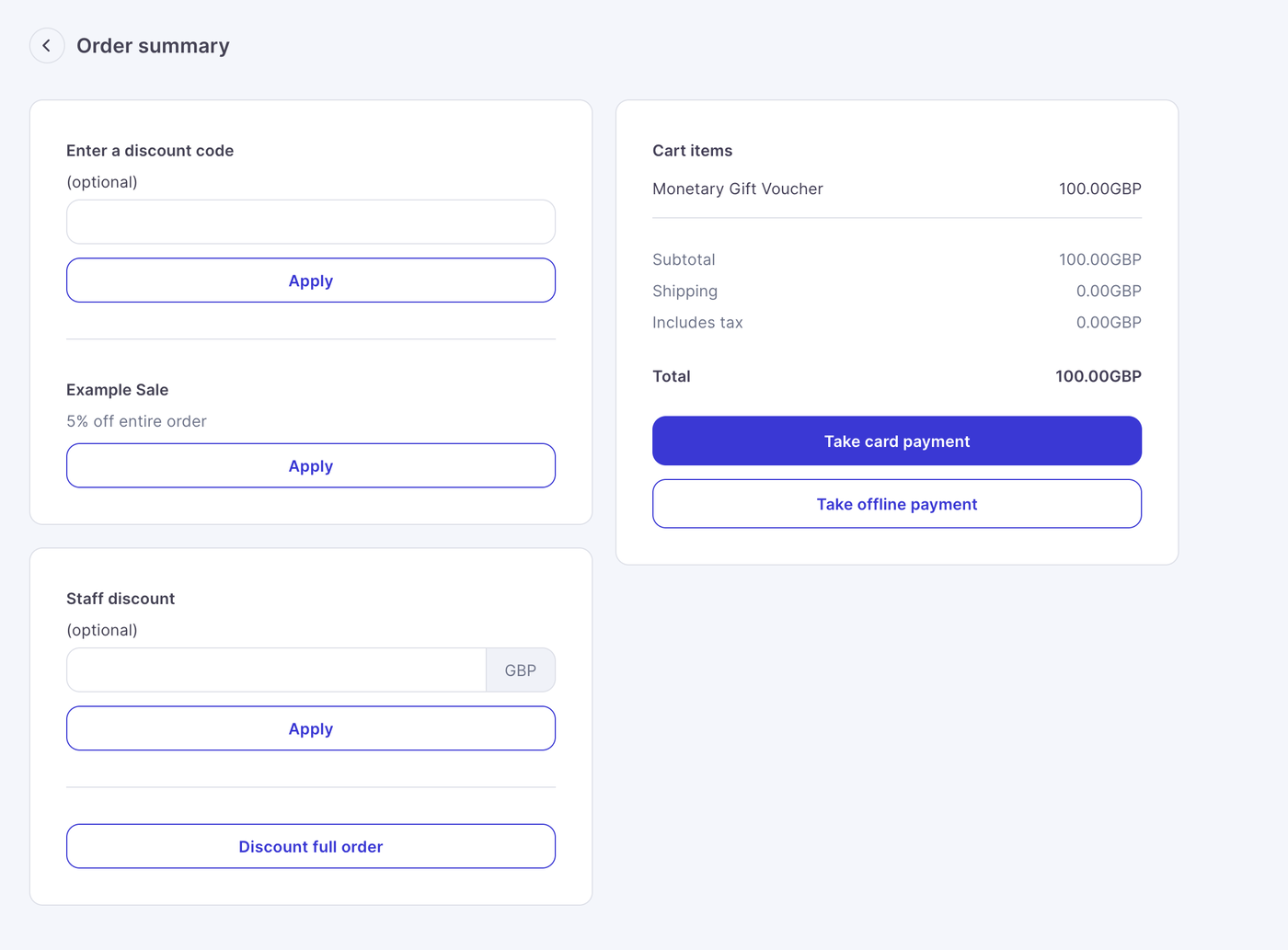
When you press discount full order the total sale will reduce to 0 and the voucher will become a complimentary or free voucher. if you have cost centres enabled on the account, you will also have the opportunity to add a cost centre.
See this article for more information: https://enjovia.help/store-settings/cost-centres
There are two main payment methods on terminal.
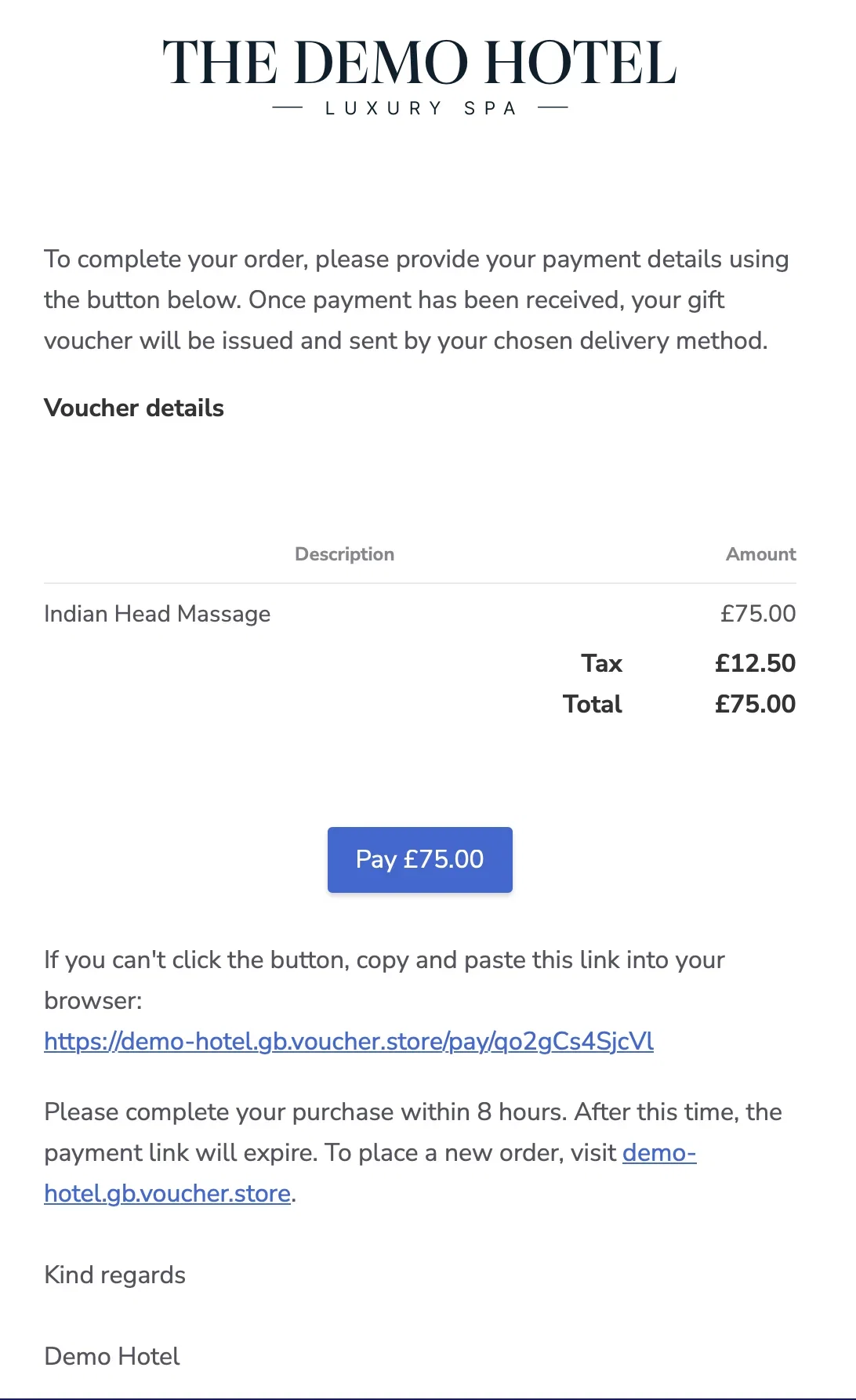
1. Take card payment - This creates a payment link which can be emailed to the customer, this payment link will last for 8 hours and once paid the customer will receive their voucher. This transaction goes through the payment gateway.
2.Take offline payment - This allows a voucher to be created without any payment gateway involvement, it is used for complimentary vouchers, face to face sales, or when you need to create vouchers while still using your own payment method away from our system.
Taking card payment.
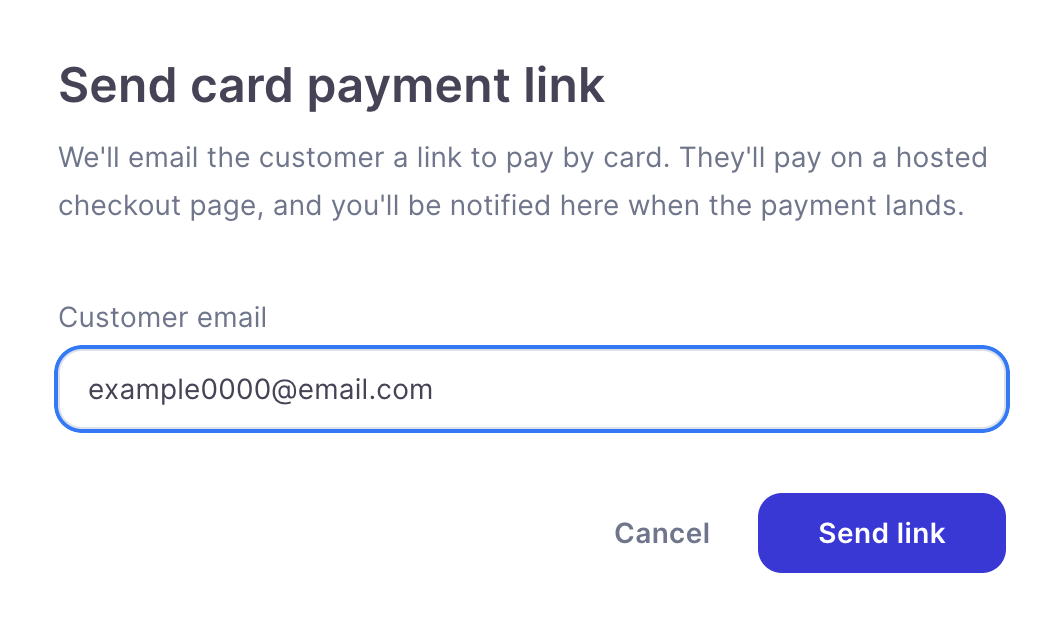
When you press pay by card, a payment link modal will appear which will ask you to input the customers email address, this is the email which will receive the link to pay for the purchase.
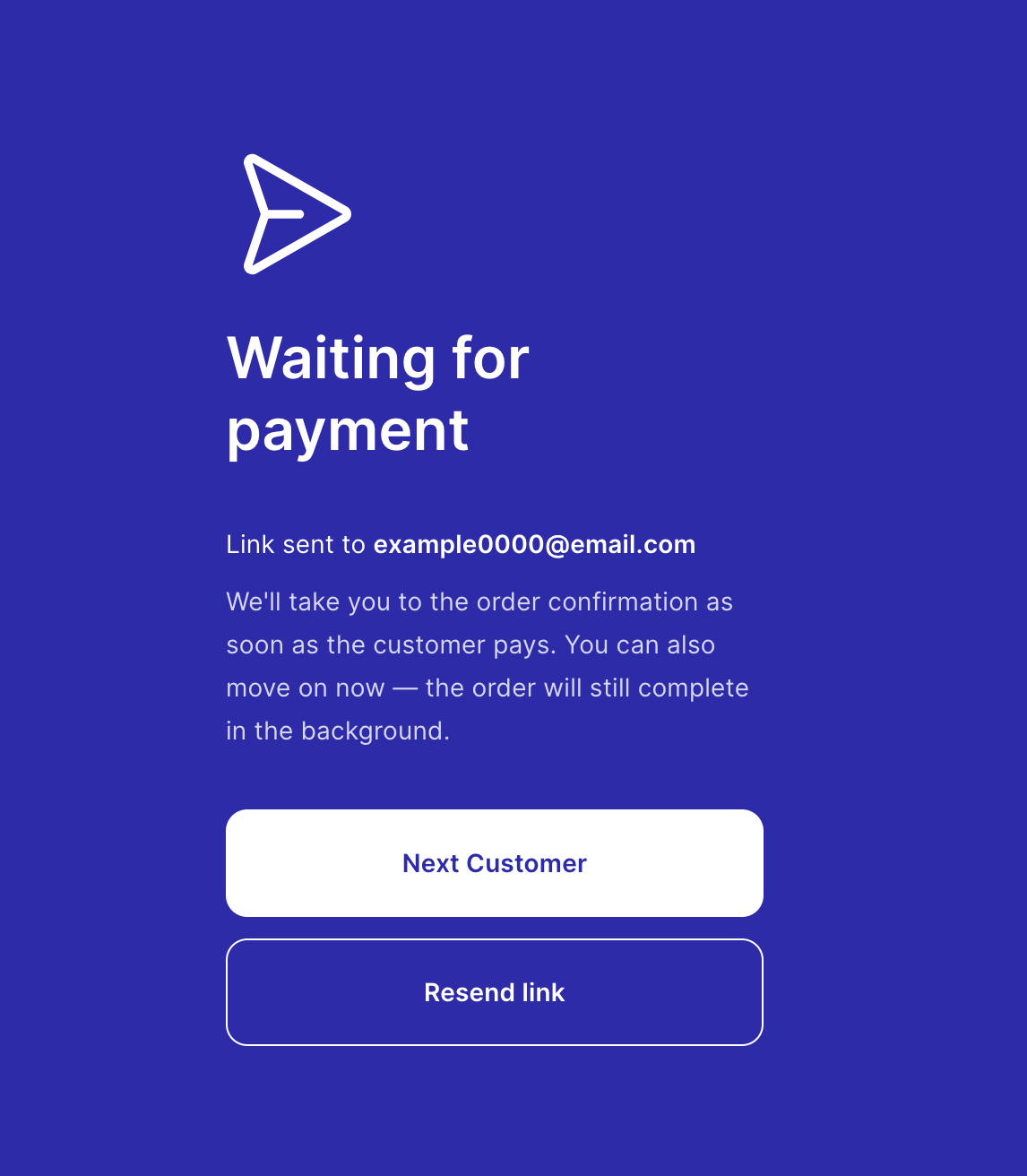
after you press send link, you will be taken to this page. You can either wait for the customer to pay and you will see a confirmation or resend the link if they did not receive it.
This is the safest way to pay by card, without fraud chances and follows best practise. If the payment link is not paid in 8 hours, the link expires and no voucher is ever created on the system.
A voucher is only created when the customer completes the purchase.
The customer will receive an email like this:
2. Offline payment
When you press offline pay and optional section opens up , this allows you to put in further information, buyer email and name, address and a payment reference.
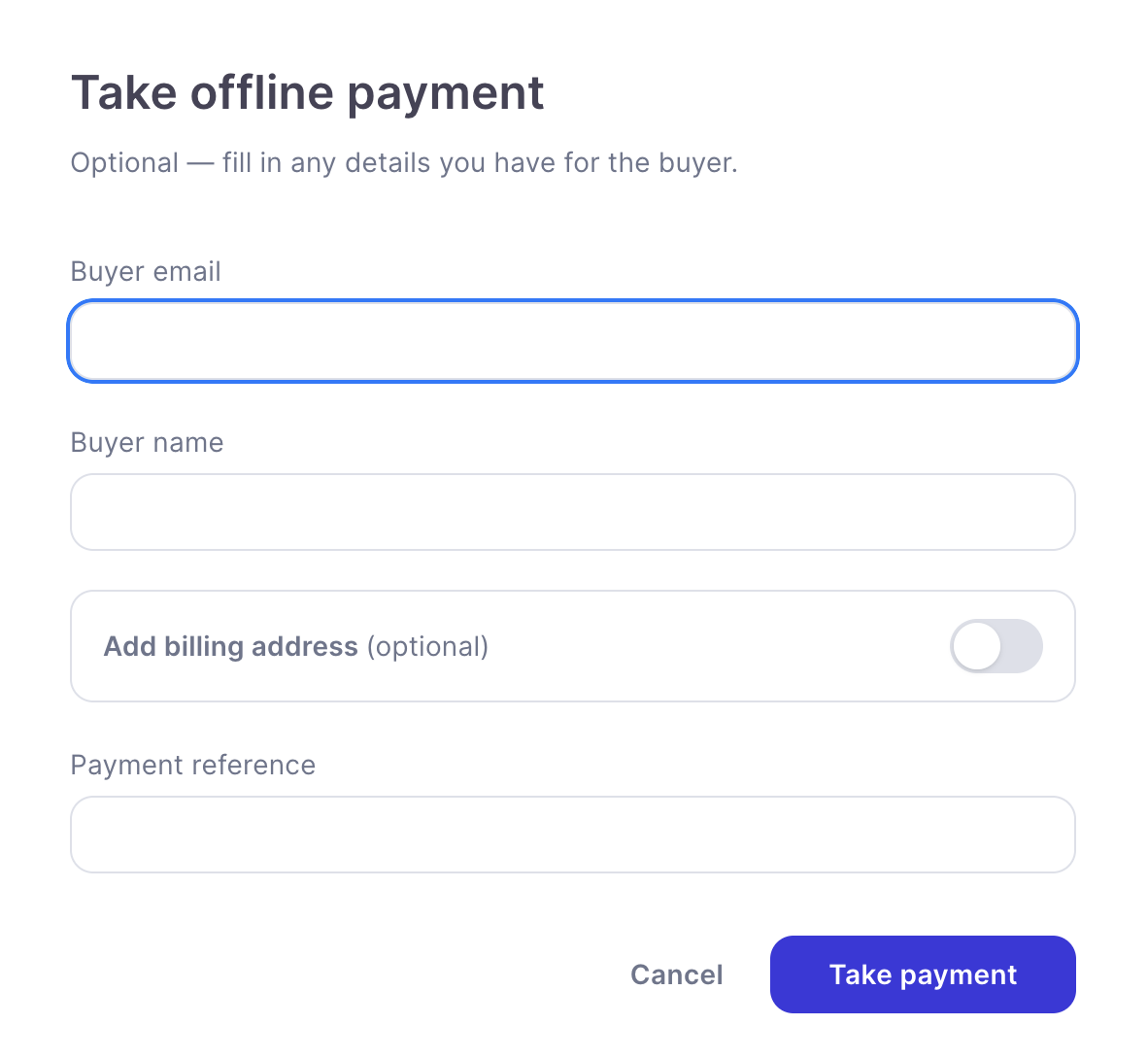
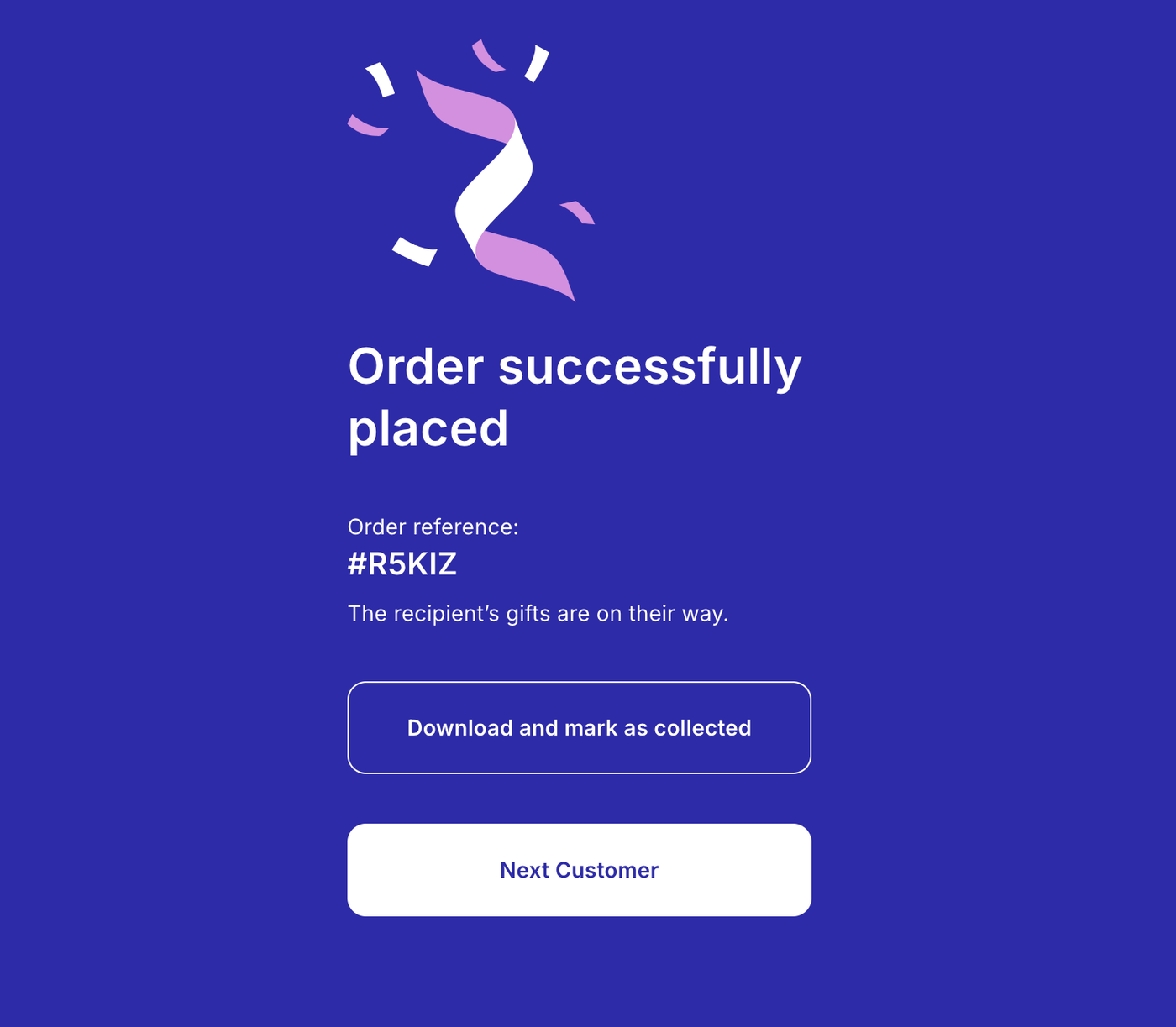
When you are ready to finish, press take payment, and then on the confirmation screen press next customer to go back to the beginning of the terminal.
For immediate printing select collection which will allow you to print and mark a collection voucher as collected
Note: Postal and collection orders not marked as collected will appear in the fulfilment table post creation.