
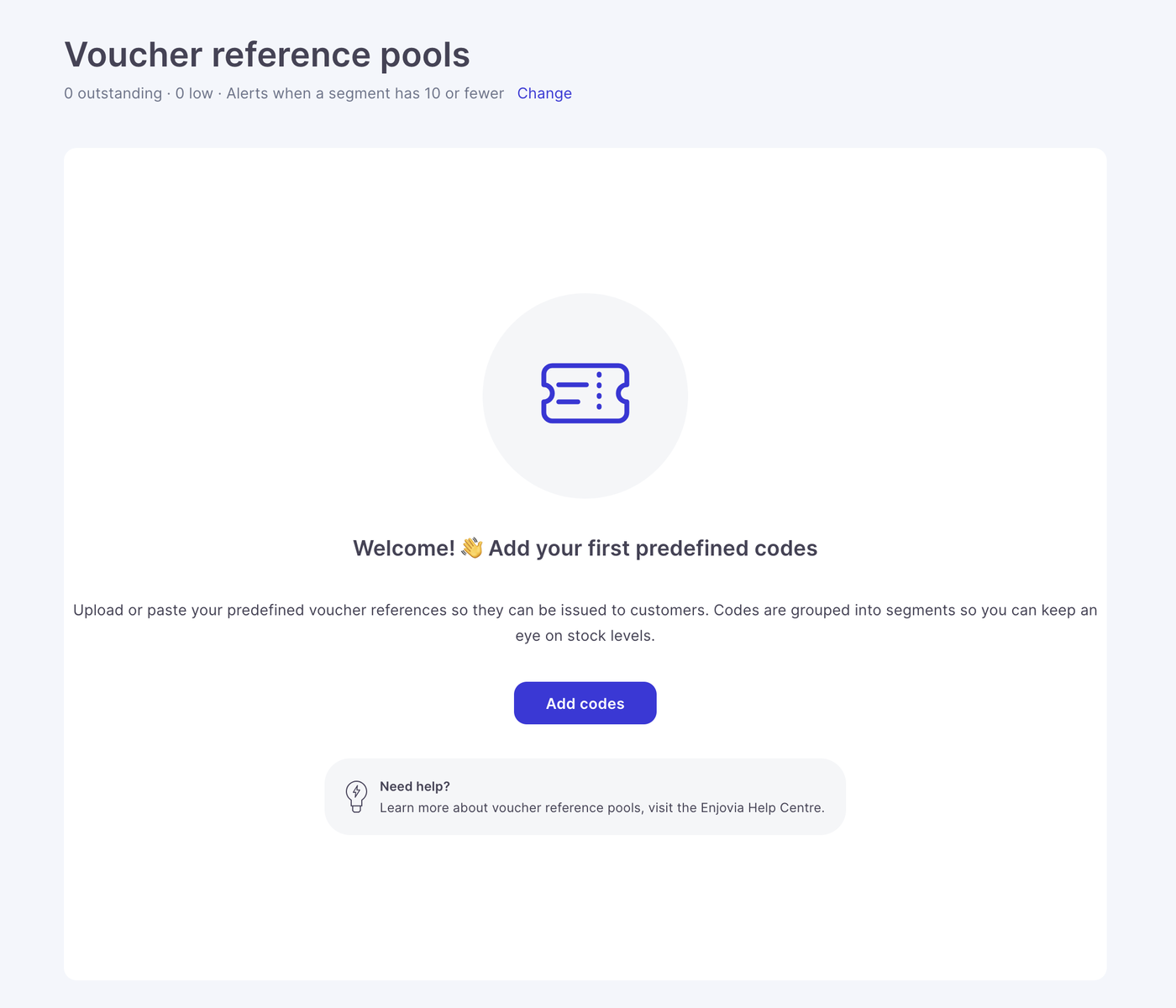
Voucher Reference Pools allow you to upload and manage your own voucher reference numbers within the system.
This feature is particularly useful for businesses that use pre-existing voucher codes supplied by external systems, third-party providers or other platforms.
Instead of relying on automatically generated voucher references, you can upload your own references and assign them to specific products or monetary voucher values.
The system also allows you to monitor available references and receive email notifications when a pool is running low.
1. Creating a Voucher Reference Pool
To create a new voucher reference pool:
Log in to your account.
Navigate to Settings.
Open Voucher Reference Pools.
Create a new reference pool.
Choose whether the pool should be assigned to a specific product or monetary voucher value.
Upload your voucher references using a CSV file.
Save your changes.
Once configured, the uploaded references will be available for use when the relevant vouchers are issued.
2. Uploading Voucher References via CSV or by Paste
You can import your own voucher reference numbers directly into the system using a CSV file or by pasting values in one code per line.
This removes the need to contact the support team whenever you need to add new references.
To upload references:
Navigate to Settings > Voucher Reference Pools.
Select the pool you want to manage or create a new one.
Choose the CSV upload option.
Select your CSV file containing the voucher references.
Complete the upload process.
Important: Ensure your CSV file contains the correct voucher reference numbers before uploading. Each reference should be unique to avoid potential conflicts.
3. Assigning References to Products or Monetary Values
Voucher reference pools can be assigned to either:
Specific products: Use a dedicated set of reference numbers for a particular voucher product or experience.
Monetary values: Assign a pool of references to a specific voucher denomination.
For example, a business selling £50 and £100 gift vouchers could maintain separate reference pools for each denomination.
This is particularly useful when integrating with external platforms that require specific codes for different voucher products or values.
4. Monitoring Available References
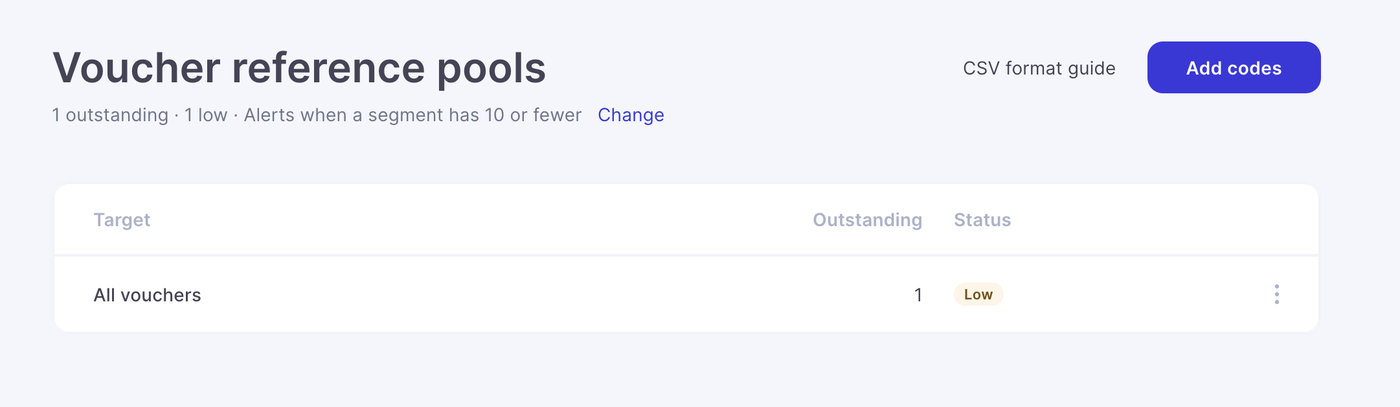
The system allows you to monitor the number of available references remaining in each pool.
To check your reference availability:
Navigate to Settings > Voucher Reference Pools.
Locate the pool you want to review.
Check the number of references remaining.
Monitoring your pools regularly helps ensure sufficient references are available for future voucher sales.
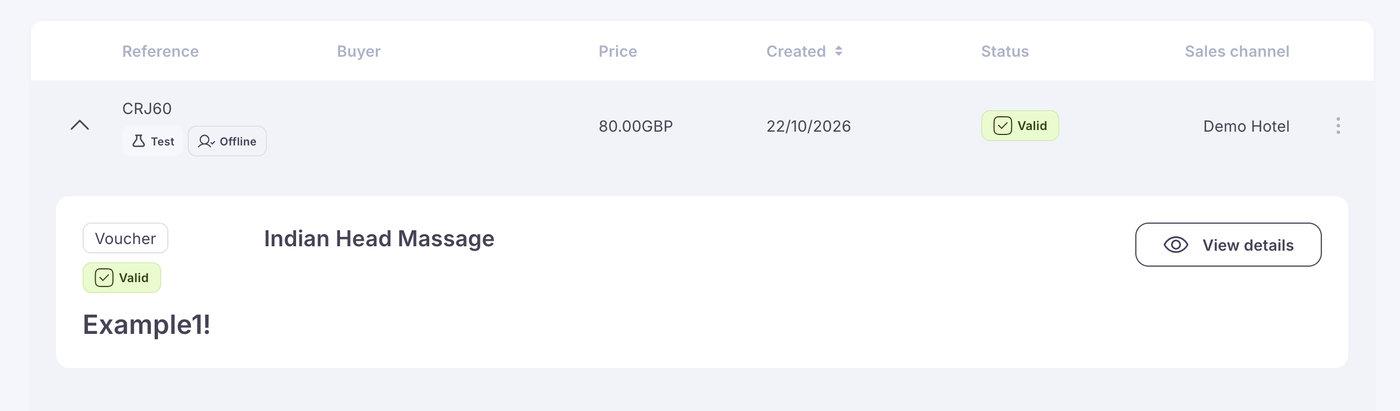
Any voucher references for the pockets chosen will then appear in orders under the reference pool you have created.
5. Setting Up Low-Stock Email Alerts
You can configure automatic email notifications when the number of available references in a pool falls below a specified threshold.
This helps prevent reference pools from running out unexpectedly.
Configuring the alert threshold
Navigate to Settings > General.
Locate the voucher reference pool low-stock threshold setting.
Enter the number of remaining references at which you want to receive a notification.
Save your changes.
For example, if you set the threshold to 100, the system will notify you when a reference pool reaches the configured low-stock level.
When you receive a notification, you can upload additional references to replenish the pool.
6. Replenishing an Existing Reference Pool
If a reference pool is running low, you can upload additional references without needing assistance from the support team.
To replenish a pool:
Navigate to Settings > Voucher Reference Pools.
Select the relevant reference pool.
Upload a new CSV file containing additional references.
Complete the upload process.
Check the pool to confirm the available reference count has increased.
Regularly replenishing your pools helps ensure uninterrupted voucher issuing.
Summary
Voucher Reference Pools give you greater control over how voucher reference numbers are managed and issued.
With CSV uploads, product-specific and monetary-value pools, availability monitoring and automatic low-stock alerts, you can manage externally supplied voucher references directly within the system.
To get started, navigate to Settings > Voucher Reference Pools.
Frequently Asked Questions
Can I use my own voucher reference numbers?
Yes. You can upload your own references using a CSV file and manage them directly within the system.
Can different products have different reference pools?
Yes. You can create dedicated reference pools for individual products, allowing different products to use separate sets of voucher references.
Can I create reference pools for different monetary voucher values?
Yes. Reference pools can be assigned to specific monetary values, such as £25, £50 or £100 vouchers.
How do I know when a pool is running low?
You can view the available reference count within the voucher reference pool settings. You can also configure email notifications to alert you when availability reaches a specified threshold.
Where can I change the low-stock notification threshold?
Navigate to Settings > General to configure the threshold for low-stock email notifications.
Do I need to contact support to upload more voucher references?
No. Voucher reference pools are self-managed, meaning you can upload additional references whenever required.