
Attaching PDF Vouchers to Outgoing Emails
You can now attach PDF versions of vouchers directly to the emails sent to customers. This gives buyers a smoother experience, since they can download, save, or print their vouchers without returning to the storefront.
Where to Find This Setting
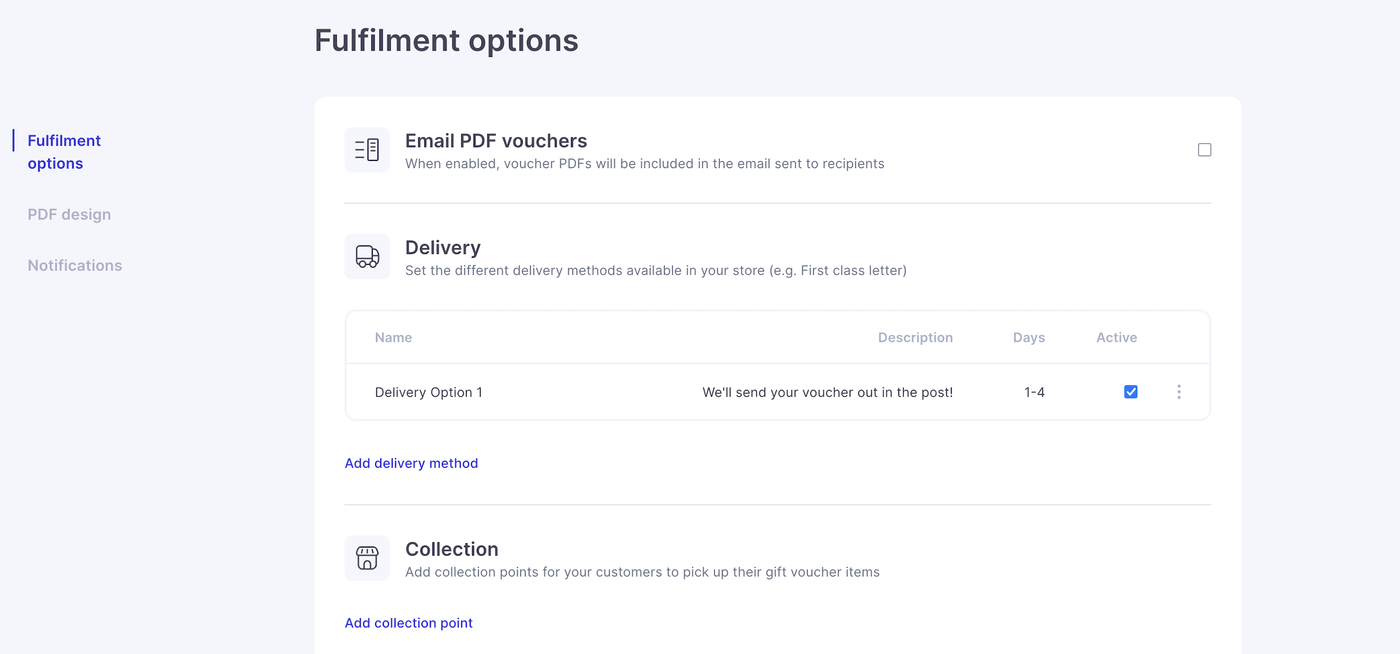
You can enable this feature in your dashboard:
Store Settings: Fulfilment
First enable fulfilment and then enable email PDFs, voucher PDFs will be automatically included with outgoing voucher emails.
You don’t need to offer physical fulfilment (postal and collection to use this setting)
Update Your Voucher Email Wording
Since customers will now receive the PDF as an attachment, it is recommended that you review and update the wording of your voucher email template. You may want to remove references to links or instructions that are no longer needed.
Important: New Product Fields Required
When you enable PDF fulfilment, two new fields appear on every product page:
• PDF Description
• PDF Terms and Conditions
These fields are inserted directly into the generated PDF. Each product must have both fields completed. This does not update automatically: you will need to manually add the correct information for every product. If these fields are left blank, the generated PDF will display empty sections.
You should also customise your PDF settings getting the feel, colours, design and information to match your brand.
For more information on how to customise PDFs click here.